> ## Documentation Index
> Fetch the complete documentation index at: https://docs.featpaper.com/llms.txt
> Use this file to discover all available pages before exploring further.
# Bookmarks
> Learn how to bookmark frequently used documents and folders for quick access.
## What Are Bookmarks?
Bookmarks let you save frequently used documents and folders as favorites so you can quickly access them from the sidebar. Bookmarks are managed per user and are not visible to other members.
***
## Adding Bookmarks
Locate the document you want to bookmark on the Documents screen.
Click the **bookmark icon** on the right side of the document item. When the icon is filled in, the bookmark has been added.
Locate the folder you want to bookmark in the sidebar or on the Documents screen.
Right-click the folder or click the more options (**...**) button.
Select **Add Bookmark** from the menu.
You can also add a bookmark by clicking the bookmark icon at the top of the document detail page.
***
## Viewing Bookmarks on the Dashboard
You can view all your bookmarked documents and folders at a glance in the **BOOKMARKS** section in the sidebar.
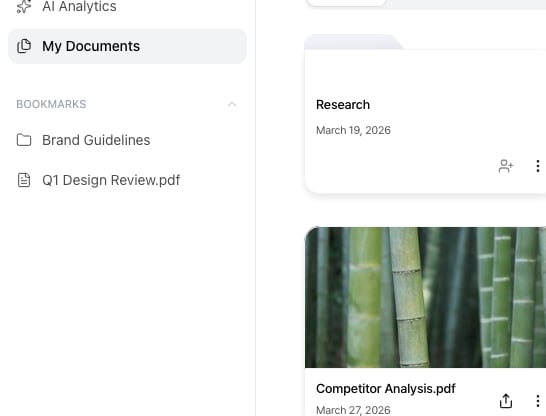 | Displayed Info | Description |
| ------------------ | -------------------------------------------------------- |
| **Document title** | The title of the bookmarked document is displayed. |
| **Document type** | A format icon such as PDF or PPT is shown. |
| **Sharing status** | Documents currently being shared display a sharing icon. |
| **Folder name** | The name of the bookmarked folder is displayed. |
The Bookmarks section is available in the **BOOKMARKS** area of the sidebar.
***
## Removing Bookmarks
Locate the bookmarked item in the sidebar BOOKMARKS section or on the Documents screen.
Click the filled **bookmark icon** again to remove the bookmark.
***
## Expired Document Display
Documents whose sharing period has expired will still appear in your bookmarks.
Expired documents are shown with an **Expired** status in the bookmark list. To reactivate the share link for the document, you need to reset the sharing period in the document settings.
Remove expired documents you no longer need from your bookmarks to keep the list clean.
| Displayed Info | Description |
| ------------------ | -------------------------------------------------------- |
| **Document title** | The title of the bookmarked document is displayed. |
| **Document type** | A format icon such as PDF or PPT is shown. |
| **Sharing status** | Documents currently being shared display a sharing icon. |
| **Folder name** | The name of the bookmarked folder is displayed. |
The Bookmarks section is available in the **BOOKMARKS** area of the sidebar.
***
## Removing Bookmarks
Locate the bookmarked item in the sidebar BOOKMARKS section or on the Documents screen.
Click the filled **bookmark icon** again to remove the bookmark.
***
## Expired Document Display
Documents whose sharing period has expired will still appear in your bookmarks.
Expired documents are shown with an **Expired** status in the bookmark list. To reactivate the share link for the document, you need to reset the sharing period in the document settings.
Remove expired documents you no longer need from your bookmarks to keep the list clean.