> ## Documentation Index
> Fetch the complete documentation index at: https://docs.featpaper.com/llms.txt
> Use this file to discover all available pages before exploring further.
# Invite Your Team
> Learn how to invite space members and manage their roles.
## Inviting Members
You can invite team members to your space to collaborate on documents together.
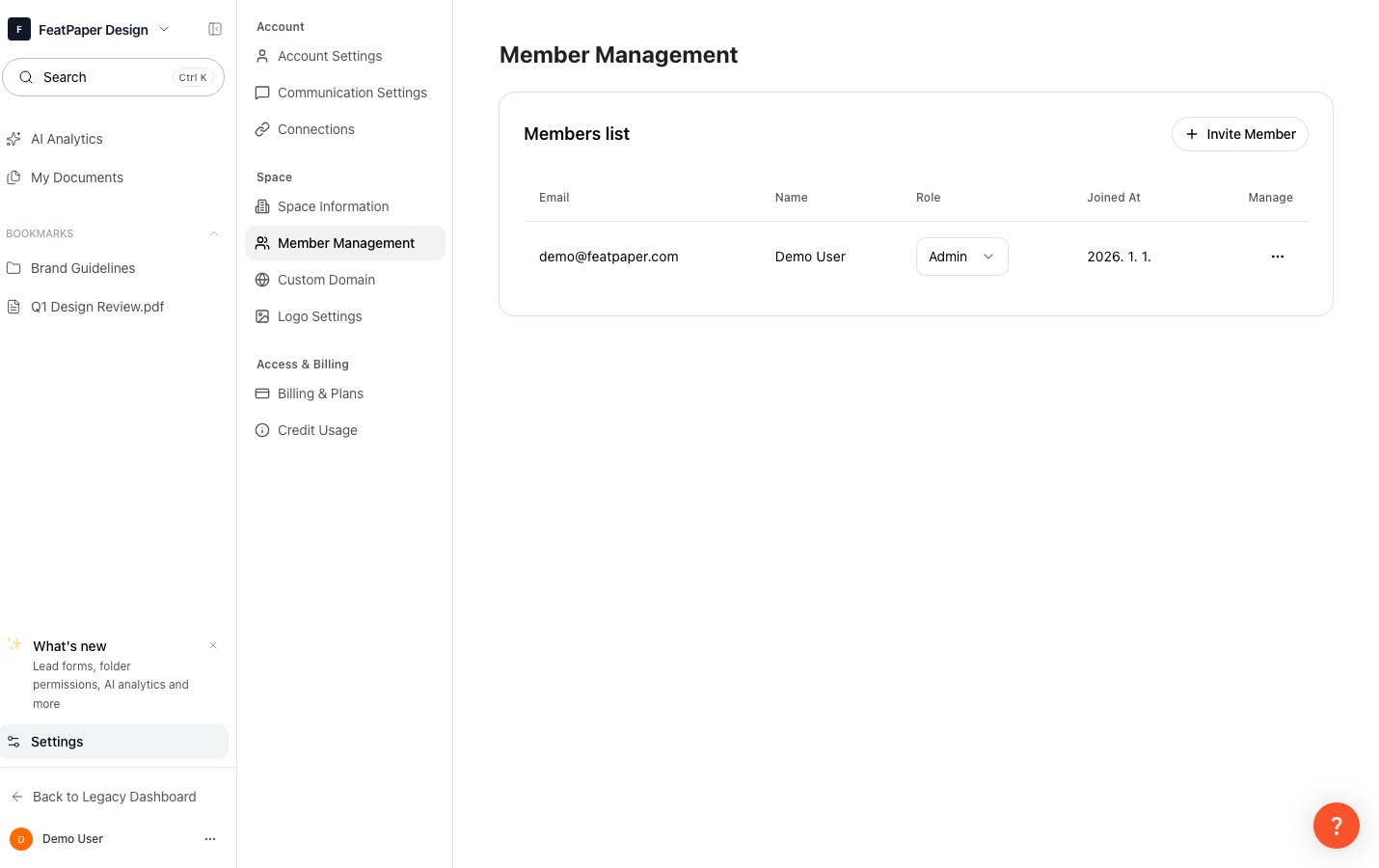 Member invitation is available on the **Business plan** and above only.
Click **Settings** at the bottom of the sidebar.
In the Settings screen, select the **Members** tab.
Enter the email address of the team member you want to invite, select a role, and click the **Invite** button.
The invited team member clicks the link in the email to join the space.
***
## Role Permissions
Space members are divided into two roles: **Admin** and **Member**. The table below shows the key permission differences at the space level.
| Permission | Admin | Member |
| --------------------------- | :---: | :----: |
| Upload and manage documents | O | O |
| Create document share links | O | O |
| Branding settings | O | X |
| Invite and manage members | O | X |
| Billing and plan management | O | X |
The person who creates a space is automatically assigned the **Admin** role.
***
## Changing Roles
Check the current member list under **Settings > Members**.
Click the role dropdown for the member you want to update and select the new role.
Only another Admin can change an Admin's role. There must be at least one Admin in the space at all times.
***
## Removing Members and Canceling Invitations
Under **Settings > Members**, click the **Remove** button next to the member you want to remove. Removed members will no longer have access to the space.
Invitations that have not yet been accepted appear in the **Pending** list. Click the **Cancel** button to revoke the invitation.
***
## Seat Limits by Plan
| Plan | Default Seats | Additional Seats |
| ---------- | :-----------: | :---------------------: |
| Free | 1 | X |
| Pro | 1 | X |
| Business | 3 | Available for purchase |
| Enterprise | Custom | Adjustable upon request |
Member invitation is available on the **Business plan and above** only. Free and Pro plans are for single-user use.
Member invitation is available on the **Business plan** and above only.
Click **Settings** at the bottom of the sidebar.
In the Settings screen, select the **Members** tab.
Enter the email address of the team member you want to invite, select a role, and click the **Invite** button.
The invited team member clicks the link in the email to join the space.
***
## Role Permissions
Space members are divided into two roles: **Admin** and **Member**. The table below shows the key permission differences at the space level.
| Permission | Admin | Member |
| --------------------------- | :---: | :----: |
| Upload and manage documents | O | O |
| Create document share links | O | O |
| Branding settings | O | X |
| Invite and manage members | O | X |
| Billing and plan management | O | X |
The person who creates a space is automatically assigned the **Admin** role.
***
## Changing Roles
Check the current member list under **Settings > Members**.
Click the role dropdown for the member you want to update and select the new role.
Only another Admin can change an Admin's role. There must be at least one Admin in the space at all times.
***
## Removing Members and Canceling Invitations
Under **Settings > Members**, click the **Remove** button next to the member you want to remove. Removed members will no longer have access to the space.
Invitations that have not yet been accepted appear in the **Pending** list. Click the **Cancel** button to revoke the invitation.
***
## Seat Limits by Plan
| Plan | Default Seats | Additional Seats |
| ---------- | :-----------: | :---------------------: |
| Free | 1 | X |
| Pro | 1 | X |
| Business | 3 | Available for purchase |
| Enterprise | Custom | Adjustable upon request |
Member invitation is available on the **Business plan and above** only. Free and Pro plans are for single-user use.