> ## Documentation Index
> Fetch the complete documentation index at: https://docs.featpaper.com/llms.txt
> Use this file to discover all available pages before exploring further.
# Organizing with Folders
> Learn how to organize and manage your documents using folders.
## What Are Folders?
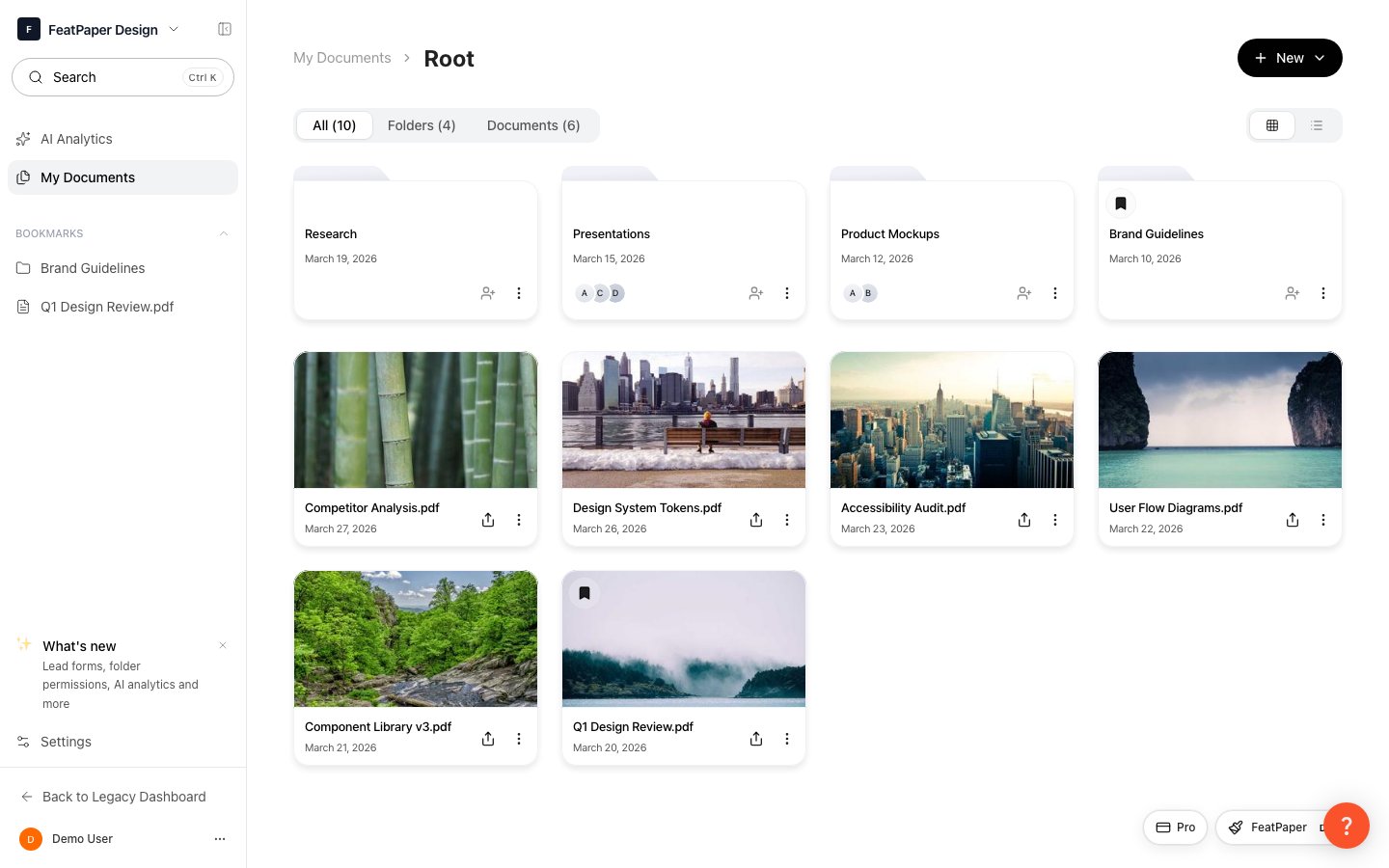
Folders let you organize documents by project, client, or topic. You can create subfolders for a hierarchical structure and invite team members at the folder level.
 ***
## Creating Folders
***
## Creating Folders
 Click **Documents** in the sidebar.
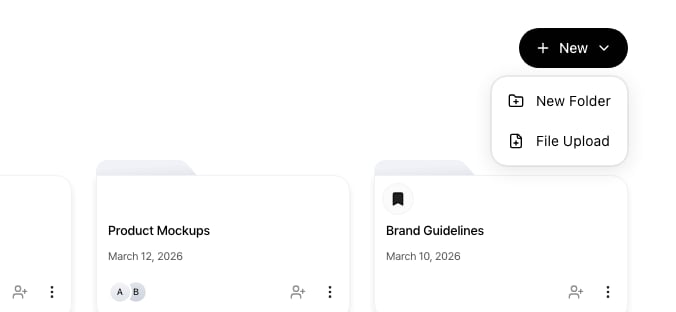
Click the **+ Create** button at the top right, select **New Folder**, and enter a folder name.
The newly created folder will appear in the document list. Click the folder to navigate inside.
Use clear, descriptive folder names that all team members can understand. For example: `2024 Q1 Sales Materials`, `Client A Proposals`
Click **Documents** in the sidebar.
Click the **+ Create** button at the top right, select **New Folder**, and enter a folder name.
The newly created folder will appear in the document list. Click the folder to navigate inside.
Use clear, descriptive folder names that all team members can understand. For example: `2024 Q1 Sales Materials`, `Client A Proposals`
 ***
## Subfolders
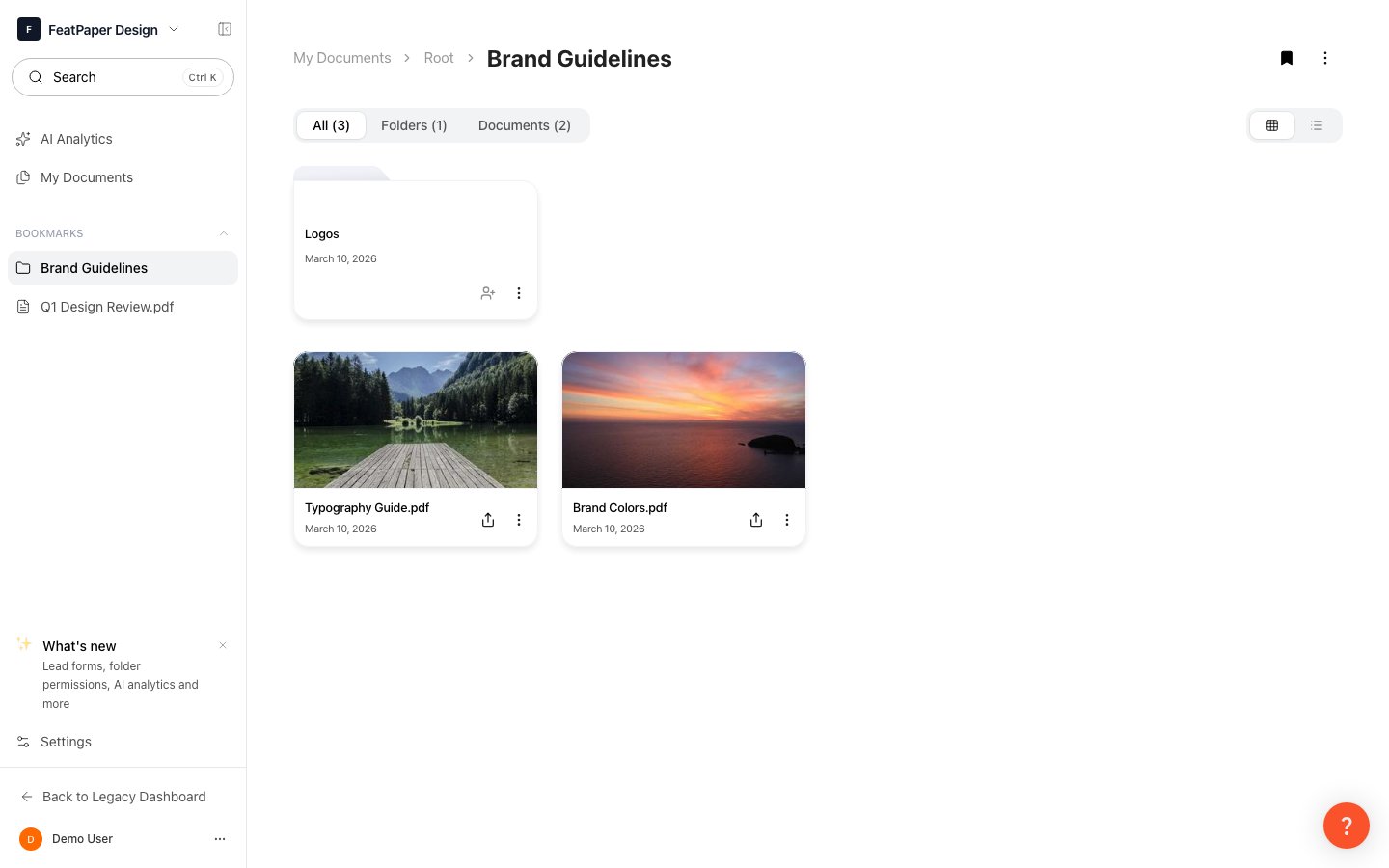
Create subfolders within a folder to further categorize your documents.
Click the parent folder where you want to create a subfolder.
Click the **New Folder** button at the top and enter a name.
Deeply nested folder structures can become difficult to navigate. We recommend keeping the hierarchy to 2-3 levels.
***
## Moving Documents and Folders
You can move documents or folders to a different location.
### Moving Individual Items
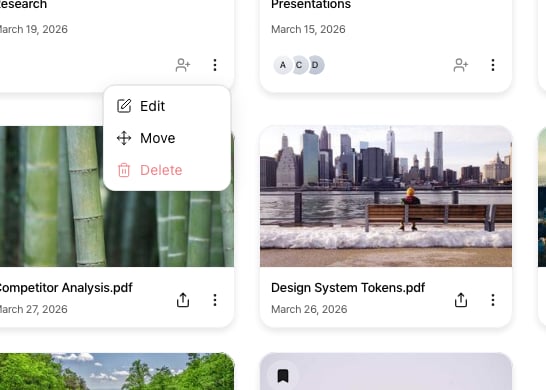
Select **Move** from the document or folder's **more menu (...)** and choose the destination folder.
***
## Subfolders
Create subfolders within a folder to further categorize your documents.
Click the parent folder where you want to create a subfolder.
Click the **New Folder** button at the top and enter a name.
Deeply nested folder structures can become difficult to navigate. We recommend keeping the hierarchy to 2-3 levels.
***
## Moving Documents and Folders
You can move documents or folders to a different location.
### Moving Individual Items
Select **Move** from the document or folder's **more menu (...)** and choose the destination folder.
 ### Moving Multiple Items at Once
You can move multiple documents or folders at the same time.
### Moving Multiple Items at Once
You can move multiple documents or folders at the same time.
 Hover over a document or folder and a **checkbox** will appear on the left. Check the items you want to move. You can select a mix of documents and folders.
When items are selected, a bulk action bar appears at the top. Click the **Move** button.
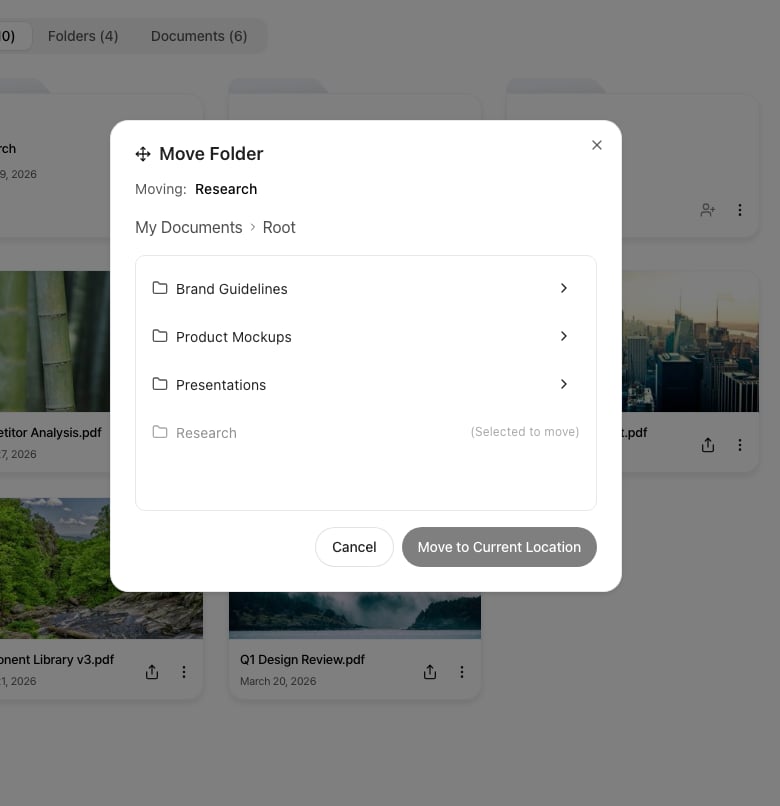
The move dialog opens at the **parent folder** of the selected items. Click **My Documents** in the breadcrumb at the top to go to the root level. Navigate into the target folder, then click the **Move to current location** button.
The folder being moved and any selected folders are shown grayed out in the destination list. Moving a folder into itself is not allowed.
Folder access permissions **follow the parent folder's permissions.** When you move a document or folder to another folder, the permissions from the original folder are removed and the new folder's permissions apply. Review the impact of permission changes before moving.
***
## Inviting Team Members to Folders
You can invite team members to a folder to grant them access. Select the **Invite** button on the folder row to search and invite members within your space.
Hover over a document or folder and a **checkbox** will appear on the left. Check the items you want to move. You can select a mix of documents and folders.
When items are selected, a bulk action bar appears at the top. Click the **Move** button.
The move dialog opens at the **parent folder** of the selected items. Click **My Documents** in the breadcrumb at the top to go to the root level. Navigate into the target folder, then click the **Move to current location** button.
The folder being moved and any selected folders are shown grayed out in the destination list. Moving a folder into itself is not allowed.
Folder access permissions **follow the parent folder's permissions.** When you move a document or folder to another folder, the permissions from the original folder are removed and the new folder's permissions apply. Review the impact of permission changes before moving.
***
## Inviting Team Members to Folders
You can invite team members to a folder to grant them access. Select the **Invite** button on the folder row to search and invite members within your space.
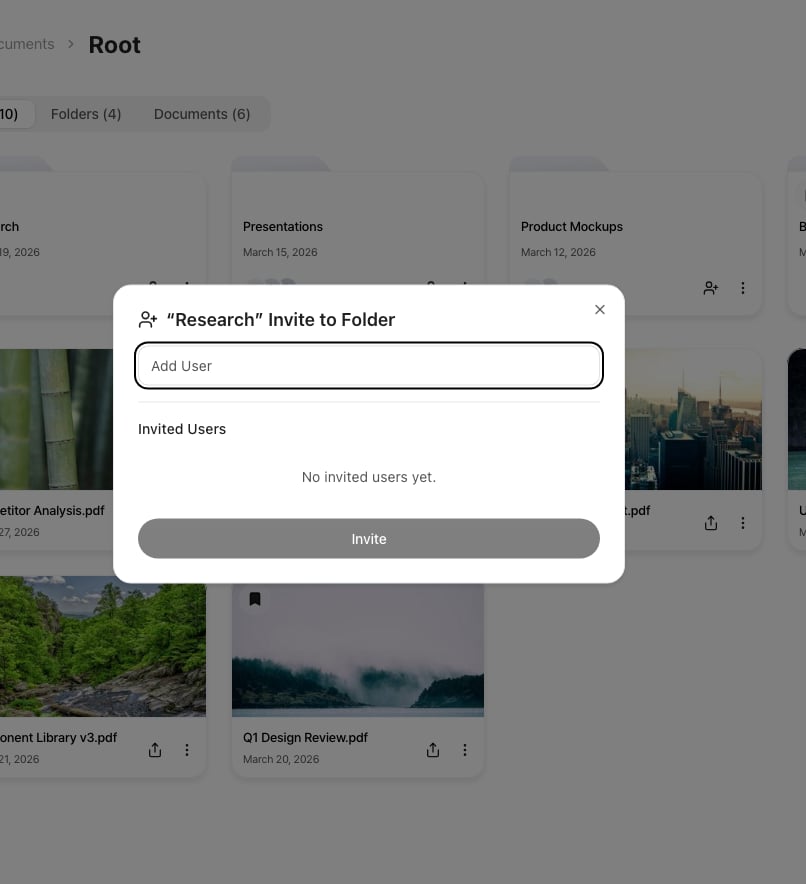 Folder invitations are limited to members within your space. For external users, use individual document share links.
***
## Bookmarking Folders
Bookmark frequently used folders for quick access from the sidebar.
Select **Bookmark** from the folder's more menu.
Bookmarked folders appear in the sidebar's bookmark section. Click to navigate directly to the folder.
Bookmarking your active project folders makes it easy to access them quickly.
***
## Deleting Folders
Select **Delete** from the folder's more menu.
Approve the deletion in the confirmation dialog.
Deleting a folder will also delete all subfolders and documents within it. Deleted items cannot be recovered, so please proceed with caution.
Folder invitations are limited to members within your space. For external users, use individual document share links.
***
## Bookmarking Folders
Bookmark frequently used folders for quick access from the sidebar.
Select **Bookmark** from the folder's more menu.
Bookmarked folders appear in the sidebar's bookmark section. Click to navigate directly to the folder.
Bookmarking your active project folders makes it easy to access them quickly.
***
## Deleting Folders
Select **Delete** from the folder's more menu.
Approve the deletion in the confirmation dialog.
Deleting a folder will also delete all subfolders and documents within it. Deleted items cannot be recovered, so please proceed with caution.