> ## Documentation Index
> Fetch the complete documentation index at: https://docs.featpaper.com/llms.txt
> Use this file to discover all available pages before exploring further.
# Add Motion Effects
> Learn how to add interactive elements like videos, GIFs, and links to your documents.
## What Is the Motion Editor?
The Motion Editor is a full-screen editor that lets you place interactive elements such as videos, GIFs, and links on top of your PDF pages. Turn static documents into dynamic content to boost viewer engagement.
***
## Opening the Motion Editor
From the dashboard, click the document you want to add motions to and navigate to the document detail (analytics) page.
Click the **Edit document** button to open the full-screen Motion Editor.
***
## Editor Layout
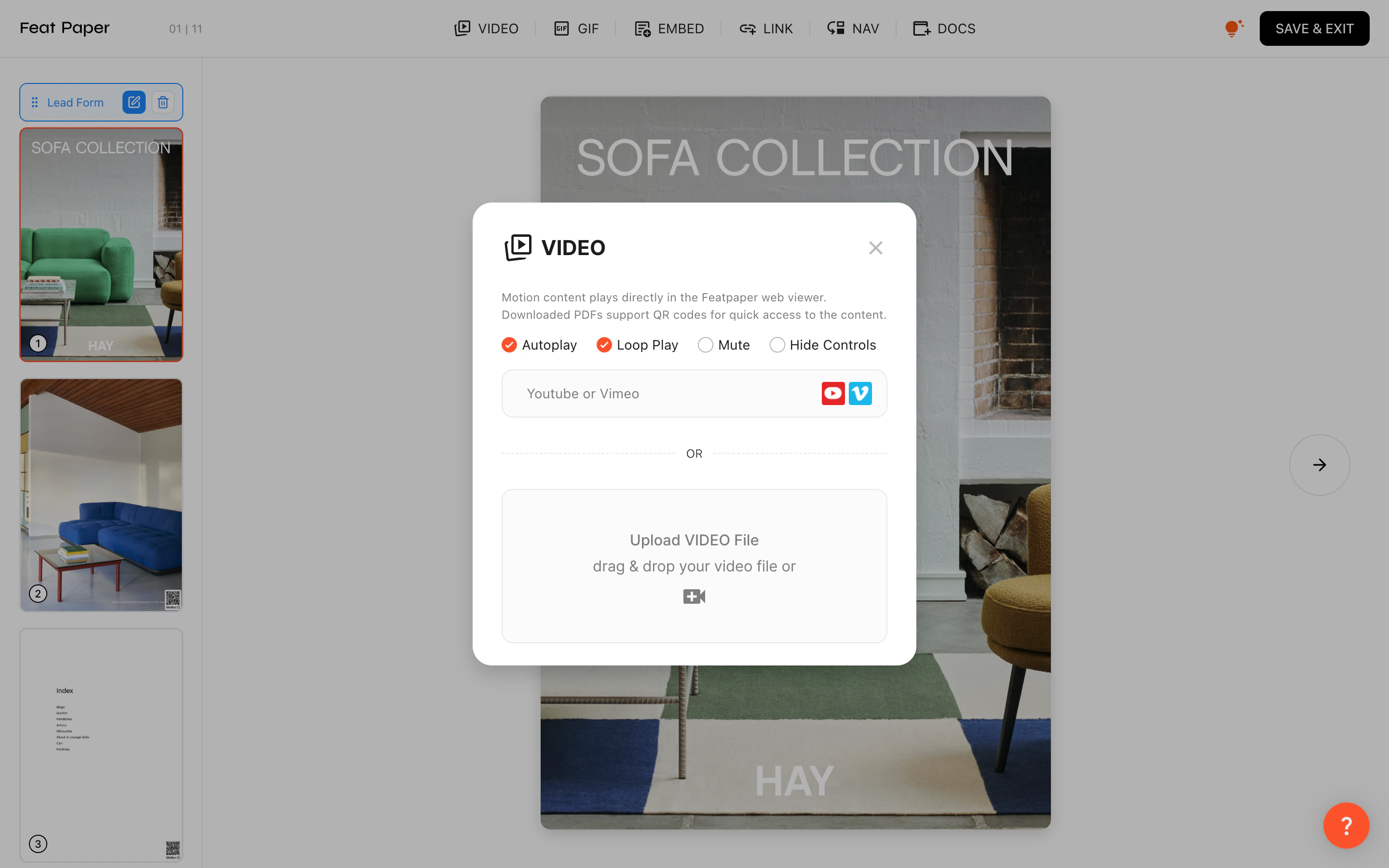 The Motion Editor consists of the following areas:
* **Header**: FeatPaper logo, motion type tabs (VIDEO, GIF, EMBED, LINK, NAV, DOCS), help icon, and the **SAVE & EXIT** button
* **Left sidebar**: Page thumbnail list and a draggable lead form marker
* **Canvas**: The main area where you place and edit motion elements on PDF pages
***
## Motion Types
| Type | Description |
| --------- | -------------------------------------------------------------------------------------------------------- |
| **VIDEO** | Upload a video file or paste a YouTube/Vimeo URL to embed in the document. |
| **GIF** | Upload a GIF file or paste a URL to add animated images. |
| **EMBED** | Paste an iframe embed code to include external content. |
| **LINK** | Create a clickable hotspot area on the page that links to an external URL or another FeatPaper document. |
| **NAV** | Create a clickable area that jumps to another page within the document. |
| **DOCS** | Link to other FeatPaper documents. Available on Pro plan and above (Pro, Business, or Enterprise). |
***
## Adding a Motion
Click the desired motion type tab in the header.
Upload a file, or enter a URL/embed code. For LINK/NAV types, specify the target URL or page number.
Drag the motion element on the canvas to position it, and drag the corner handles to resize. You can lock the aspect ratio.
***
## Video Settings
When using the VIDEO type, you can configure the following options:
| Option | Description |
| ----------------- | --------------------------------------------------------- |
| **AutoPlay** | Automatically plays the video when the page is displayed. |
| **Loop** | Replays the video from the beginning when it ends. |
| **Mute** | Plays the video with sound muted. |
| **Hide Controls** | Hides the playback controls. |
***
## Link and Navigation Settings
LINK and NAV types create clickable areas on the page.
* **Click area**: Drag to set the position and size.
* **Corner rounding**: Adjust the corner radius of the area.
* **Target**: For LINK, specify the destination URL. For NAV, specify the target page number.
***
## Keyboard Shortcuts
| Shortcut | Action |
| ---------------------------------------------------------- | --------------------------------- |
| **Arrow keys** | Move the selected element by 1px |
| **Shift + Arrow keys** | Move the selected element by 10px |
| **Backspace** | Delete the selected element |
| **Cmd + Z** (Mac) / **Ctrl + Z** (Windows) | Undo |
| **Cmd + Shift + Z** (Mac) / **Ctrl + Shift + Z** (Windows) | Redo |
| **Cmd + Y** (Mac) / **Ctrl + Y** (Windows) | Redo |
| **Cmd + C** (Mac) / **Ctrl + C** (Windows) | Copy |
| **Cmd + V** (Mac) / **Ctrl + V** (Windows) | Paste |
***
## Save and Exit
When you are done editing, click the **SAVE & EXIT** button in the header. All motion changes are saved and the updated document is generated. Viewers can then see the motions applied through the share link.
You can add motion elements to multiple pages individually. Click the desired page in the left sidebar to switch between pages.
The Motion Editor consists of the following areas:
* **Header**: FeatPaper logo, motion type tabs (VIDEO, GIF, EMBED, LINK, NAV, DOCS), help icon, and the **SAVE & EXIT** button
* **Left sidebar**: Page thumbnail list and a draggable lead form marker
* **Canvas**: The main area where you place and edit motion elements on PDF pages
***
## Motion Types
| Type | Description |
| --------- | -------------------------------------------------------------------------------------------------------- |
| **VIDEO** | Upload a video file or paste a YouTube/Vimeo URL to embed in the document. |
| **GIF** | Upload a GIF file or paste a URL to add animated images. |
| **EMBED** | Paste an iframe embed code to include external content. |
| **LINK** | Create a clickable hotspot area on the page that links to an external URL or another FeatPaper document. |
| **NAV** | Create a clickable area that jumps to another page within the document. |
| **DOCS** | Link to other FeatPaper documents. Available on Pro plan and above (Pro, Business, or Enterprise). |
***
## Adding a Motion
Click the desired motion type tab in the header.
Upload a file, or enter a URL/embed code. For LINK/NAV types, specify the target URL or page number.
Drag the motion element on the canvas to position it, and drag the corner handles to resize. You can lock the aspect ratio.
***
## Video Settings
When using the VIDEO type, you can configure the following options:
| Option | Description |
| ----------------- | --------------------------------------------------------- |
| **AutoPlay** | Automatically plays the video when the page is displayed. |
| **Loop** | Replays the video from the beginning when it ends. |
| **Mute** | Plays the video with sound muted. |
| **Hide Controls** | Hides the playback controls. |
***
## Link and Navigation Settings
LINK and NAV types create clickable areas on the page.
* **Click area**: Drag to set the position and size.
* **Corner rounding**: Adjust the corner radius of the area.
* **Target**: For LINK, specify the destination URL. For NAV, specify the target page number.
***
## Keyboard Shortcuts
| Shortcut | Action |
| ---------------------------------------------------------- | --------------------------------- |
| **Arrow keys** | Move the selected element by 1px |
| **Shift + Arrow keys** | Move the selected element by 10px |
| **Backspace** | Delete the selected element |
| **Cmd + Z** (Mac) / **Ctrl + Z** (Windows) | Undo |
| **Cmd + Shift + Z** (Mac) / **Ctrl + Shift + Z** (Windows) | Redo |
| **Cmd + Y** (Mac) / **Ctrl + Y** (Windows) | Redo |
| **Cmd + C** (Mac) / **Ctrl + C** (Windows) | Copy |
| **Cmd + V** (Mac) / **Ctrl + V** (Windows) | Paste |
***
## Save and Exit
When you are done editing, click the **SAVE & EXIT** button in the header. All motion changes are saved and the updated document is generated. Viewers can then see the motions applied through the share link.
You can add motion elements to multiple pages individually. Click the desired page in the left sidebar to switch between pages.