> ## Documentation Index
> Fetch the complete documentation index at: https://docs.featpaper.com/llms.txt
> Use this file to discover all available pages before exploring further.
# Uploading Documents
> Learn how to upload documents to FeatPaper and the supported file formats.
## How to Upload Documents
Click **Documents** in the sidebar and navigate to the desired folder. When a folder is empty, a dashed-border upload area is displayed in the center.
**Drag and drop** files into the upload area, or **click** the upload area to select files from your file explorer.
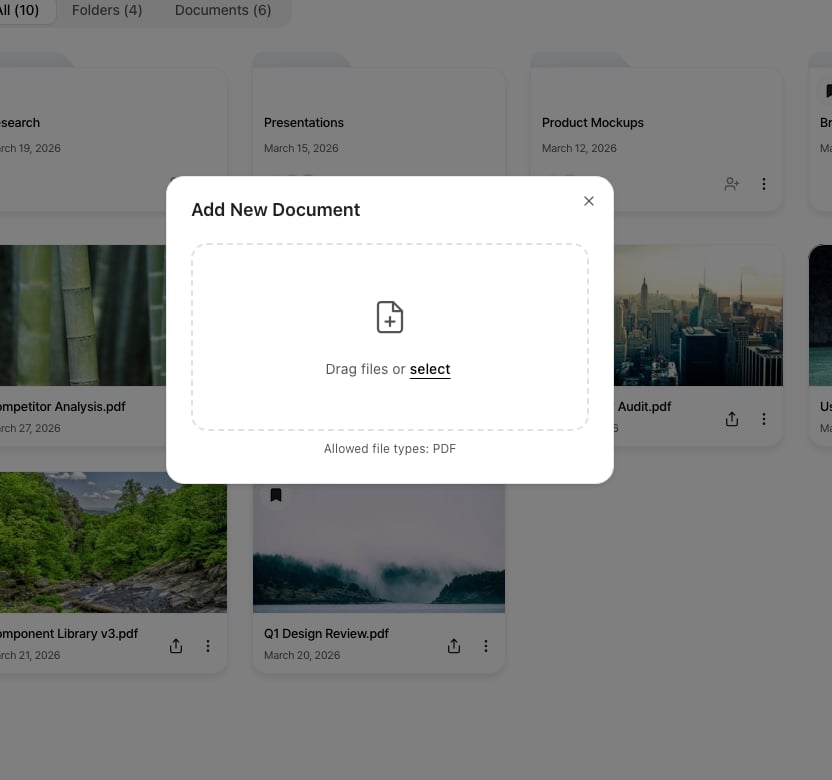 Once the upload is complete, the document will appear in the document list. Conversion processing will begin, and you can generate a share link once it finishes.
***
## Supported Formats
| Format | Extension | Description |
| -------------- | --------------- | ----------------------------------------------------------------------- |
| **PDF** | `.pdf` | The most common document format. Displayed directly in the viewer. |
| **PowerPoint** | `.ppt`, `.pptx` | Automatically converted to PDF upon upload and displayed in the viewer. |
PPT/PPTX files are automatically converted to PDF on the server after upload. Conversion may take anywhere from a few seconds to several minutes depending on file size.
***
## Plugin Upload
You can upload directly to FeatPaper from external tools. When viewing an empty folder's upload area, icons for the Figma, Adobe Express, and PowerPoint plugins are shown at the bottom — clicking one takes you directly to that plugin's installation page.
Upload directly from the PowerPoint add-in.
Convert design files to PDF and upload using the Figma plugin.
Quickly upload using the Express plugin.
***
## File Size Limits
The maximum file size for uploads varies by subscription plan.
| Plan | Max File Size |
| -------------- | ------------- |
| **Free** | 50MB |
| **Pro** | 100MB |
| **Business** | 300MB |
| **Enterprise** | 10GB |
Uploads will be rejected if the file exceeds the size limit. If you need to upload larger files, consider upgrading to a higher plan.
***
## Post-Upload Processing
The uploaded file's format and size are validated.
PPT/PPTX files are automatically converted to PDF. PDF files skip this step.
Each page is converted to images to ensure fast viewer loading.
Once processing is complete, you can generate share links and start tracking viewing analytics.
You can browse and manage other documents while an upload is in progress. The document list will update its status once processing is complete.
Once the upload is complete, the document will appear in the document list. Conversion processing will begin, and you can generate a share link once it finishes.
***
## Supported Formats
| Format | Extension | Description |
| -------------- | --------------- | ----------------------------------------------------------------------- |
| **PDF** | `.pdf` | The most common document format. Displayed directly in the viewer. |
| **PowerPoint** | `.ppt`, `.pptx` | Automatically converted to PDF upon upload and displayed in the viewer. |
PPT/PPTX files are automatically converted to PDF on the server after upload. Conversion may take anywhere from a few seconds to several minutes depending on file size.
***
## Plugin Upload
You can upload directly to FeatPaper from external tools. When viewing an empty folder's upload area, icons for the Figma, Adobe Express, and PowerPoint plugins are shown at the bottom — clicking one takes you directly to that plugin's installation page.
Upload directly from the PowerPoint add-in.
Convert design files to PDF and upload using the Figma plugin.
Quickly upload using the Express plugin.
***
## File Size Limits
The maximum file size for uploads varies by subscription plan.
| Plan | Max File Size |
| -------------- | ------------- |
| **Free** | 50MB |
| **Pro** | 100MB |
| **Business** | 300MB |
| **Enterprise** | 10GB |
Uploads will be rejected if the file exceeds the size limit. If you need to upload larger files, consider upgrading to a higher plan.
***
## Post-Upload Processing
The uploaded file's format and size are validated.
PPT/PPTX files are automatically converted to PDF. PDF files skip this step.
Each page is converted to images to ensure fast viewer loading.
Once processing is complete, you can generate share links and start tracking viewing analytics.
You can browse and manage other documents while an upload is in progress. The document list will update its status once processing is complete.