> ## Documentation Index
> Fetch the complete documentation index at: https://docs.featpaper.com/llms.txt
> Use this file to discover all available pages before exploring further.
# Updating Documents
> Learn how to manage document versions and restore previous versions.
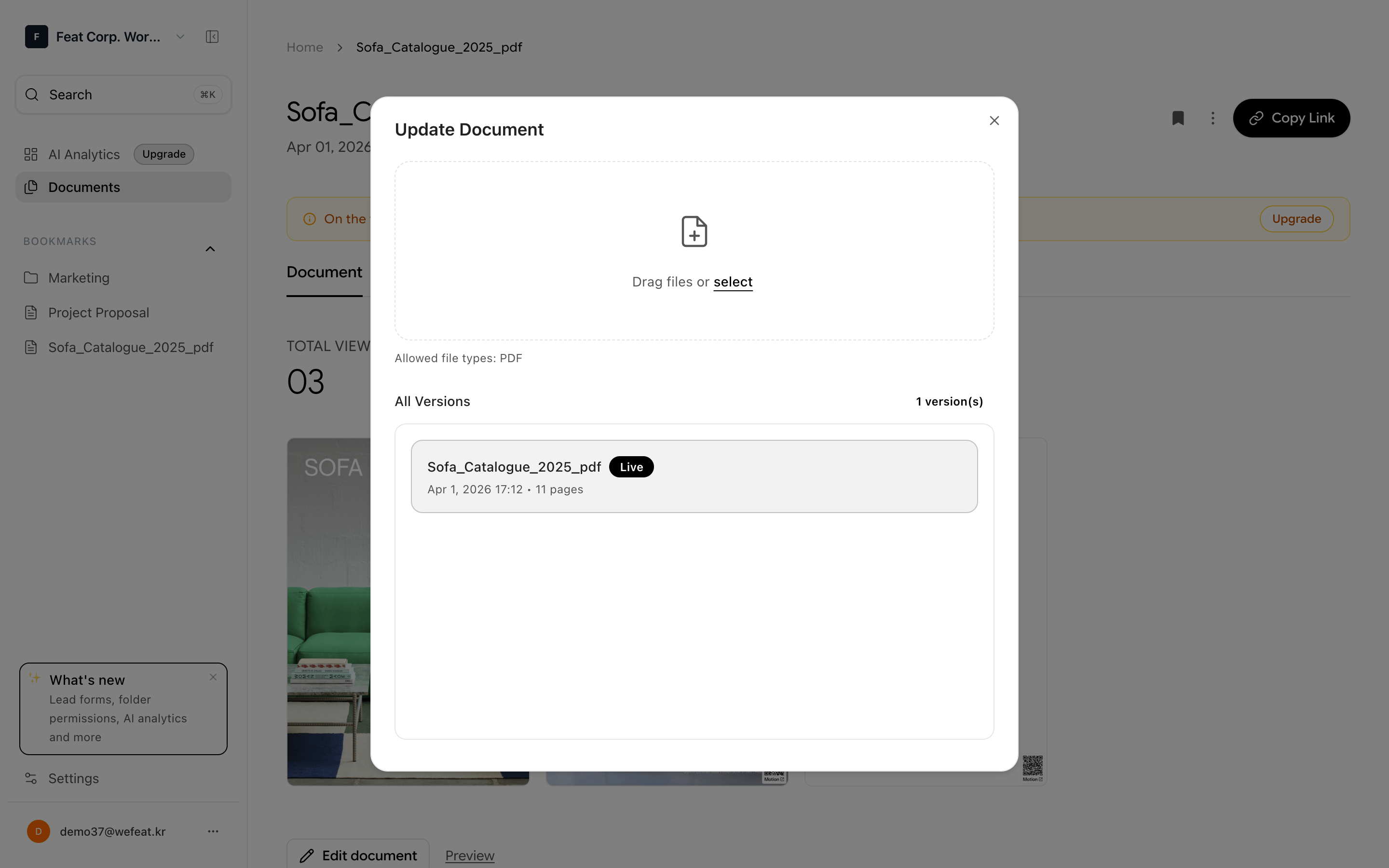
FeatPaper automatically saves previous versions every time you update a document. Use version history to review changes and restore earlier versions when needed.
 ***
## Viewing Version History
Click the document you want to check versions for in the document list.
Click the **Version History** menu on the document detail screen.
View each version's upload date, file name, page count, and more. Click a version to preview that version of the document.
Version numbers increment automatically with each update. The latest version is displayed at the top.
***
## Updating Documents
Upload a new file to an existing document to update it. Existing share links remain unchanged.
Click the document you want to update to open its detail screen.
Click the **Update Document** button.
Select and upload a new file (PDF, PPT, or PPTX).
After conversion processing, the new version is applied. Viewers accessing the existing share link will see the latest version.
Updating a document does not change existing share links, so you don't need to send a new link to your viewers.
***
## Restoring a Previous Version
Open **Version History** from the document detail screen.
Click the **Restore** button for the version you want to restore.
Approve in the confirmation dialog, and the selected version will become the latest version.
When you restore a version, the current version is preserved in the history, and the selected version becomes the new latest version. No data is deleted.
***
Learn how to leverage document viewing data and AI insights.
Learn about detailed share link configuration options.
***
## Viewing Version History
Click the document you want to check versions for in the document list.
Click the **Version History** menu on the document detail screen.
View each version's upload date, file name, page count, and more. Click a version to preview that version of the document.
Version numbers increment automatically with each update. The latest version is displayed at the top.
***
## Updating Documents
Upload a new file to an existing document to update it. Existing share links remain unchanged.
Click the document you want to update to open its detail screen.
Click the **Update Document** button.
Select and upload a new file (PDF, PPT, or PPTX).
After conversion processing, the new version is applied. Viewers accessing the existing share link will see the latest version.
Updating a document does not change existing share links, so you don't need to send a new link to your viewers.
***
## Restoring a Previous Version
Open **Version History** from the document detail screen.
Click the **Restore** button for the version you want to restore.
Approve in the confirmation dialog, and the selected version will become the latest version.
When you restore a version, the current version is preserved in the history, and the selected version becomes the new latest version. No data is deleted.
***
Learn how to leverage document viewing data and AI insights.
Learn about detailed share link configuration options.