> ## Documentation Index
> Fetch the complete documentation index at: https://docs.featpaper.com/llms.txt
> Use this file to discover all available pages before exploring further.
# Getting Started
> Learn how to sign up for FeatPaper, access the dashboard, and upload your first document.
## What is FeatPaper?
FeatPaper is a **document management SaaS** that lets you securely share PDF and PPT files and analyze who viewed which pages and when.
* Upload documents and generate share links
* Track viewer behavior in real time
* Get AI-powered insights on document performance
* Manage documents with your team in a shared workspace
This guide walks you through **sign-up, dashboard access, and your first document upload**.
***
## Overview
Get started instantly with your Google account.
Learn the sidebar structure and key menus.
Create a folder, upload a document, and create a share link.
***
## 1. Sign Up and Log In
Open [featpaper.com](https://featpaper.com) in your browser.
Click the **Continue with Google** button. You will be redirected to Google authentication. Select your account to complete both sign-up and login at once.
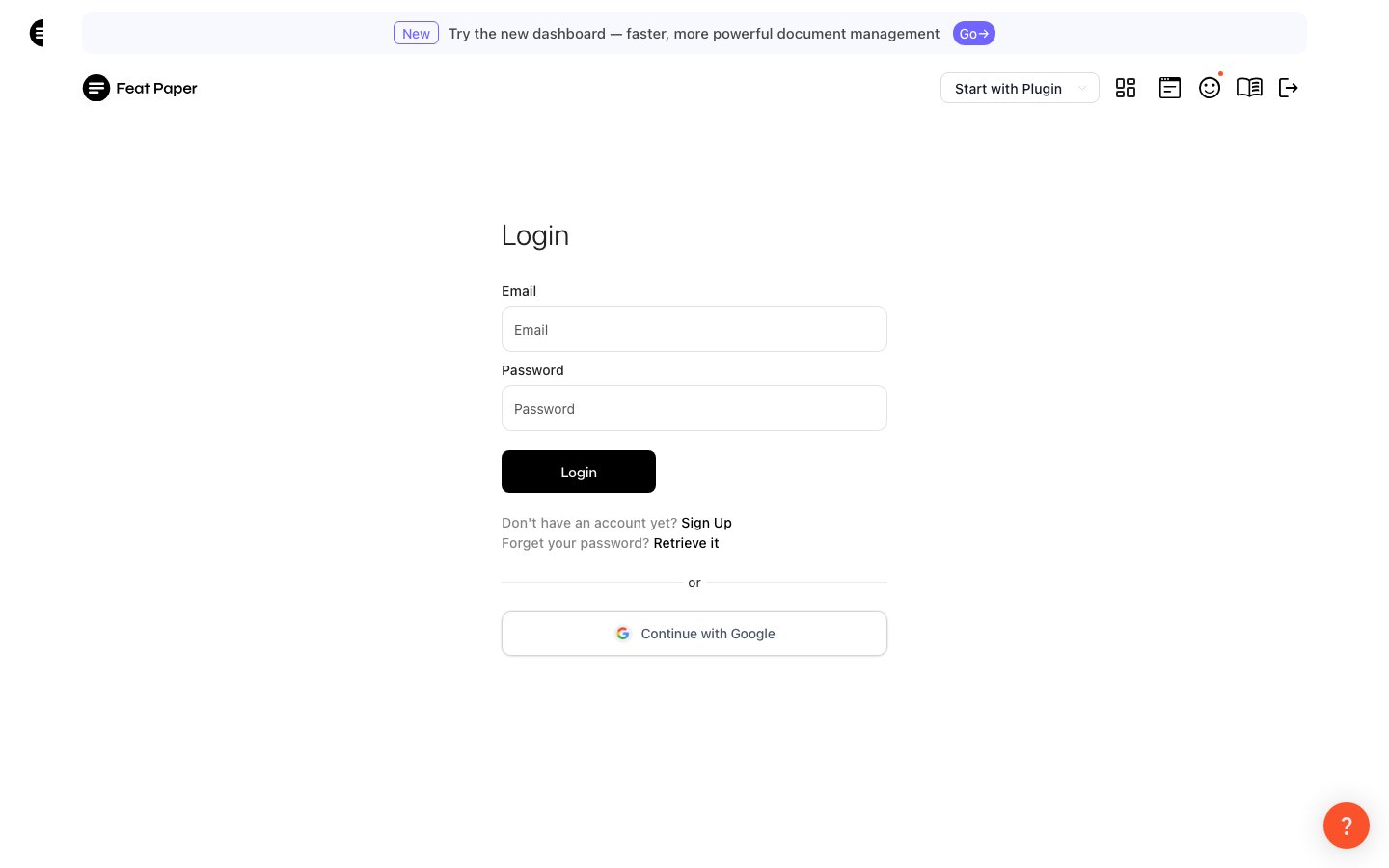 On your first login, you will create a workspace (Space). A workspace is where your team or project manages documents together.
If a teammate has sent you an invitation link, use it to join an existing workspace directly.
***
## 2. Explore the Dashboard
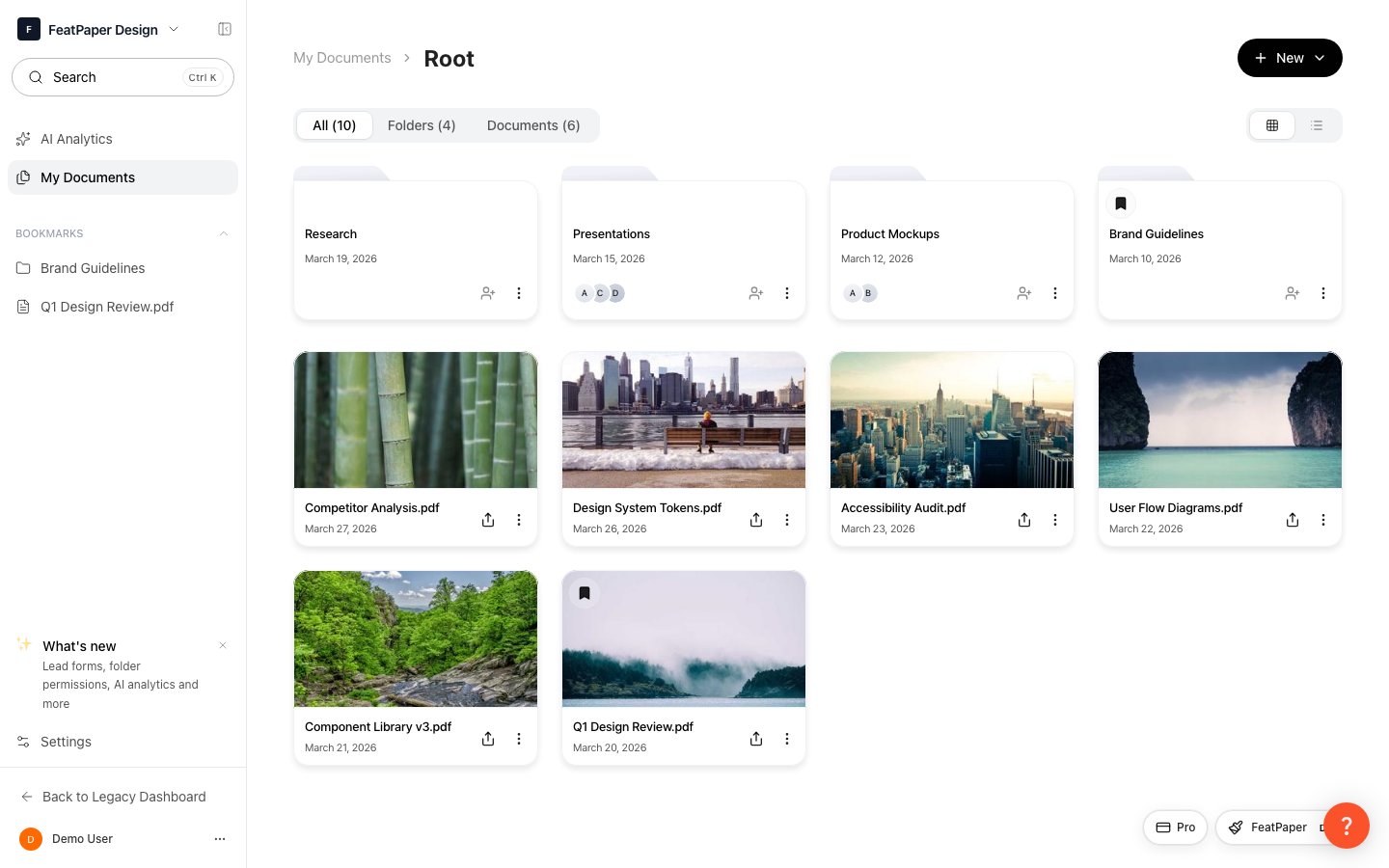
After logging in, you will land on the dashboard. Use the left sidebar to access all features.
On your first login, you will create a workspace (Space). A workspace is where your team or project manages documents together.
If a teammate has sent you an invitation link, use it to join an existing workspace directly.
***
## 2. Explore the Dashboard
After logging in, you will land on the dashboard. Use the left sidebar to access all features.
 ### Sidebar Structure
The sidebar is organized from top to bottom as follows:
| Area | Menu | Description |
| ---------- | ------------------ | ------------------------------------------------------------------- |
| **Top** | Workspace Switcher | View the current workspace, switch to another, or create a new one. |
| **Main** | AI Analytics | View AI-powered document viewing analytics and insights. |
| **Main** | Documents | Manage uploaded documents organized by folders. |
| **Bottom** | Settings | Manage workspace settings, members, branding, billing, and more. |
| **Bottom** | Account Menu | Manage your profile, notification preferences, and sign out. |
### Access by Role
Full access to all features: AI Analytics, Documents, and all Settings (members, branding, billing, custom domain, etc.).
Access to Documents and basic Settings. Admin-only features like AI Analytics, branding, and billing are restricted.
Use the workspace switcher to move between multiple workspaces.
***
## 3. Upload Your First Document
Click **Documents** in the sidebar to go to the Documents page. Click the **+ Create** button in the top right corner and select **New Folder**, then enter a folder name.
### Sidebar Structure
The sidebar is organized from top to bottom as follows:
| Area | Menu | Description |
| ---------- | ------------------ | ------------------------------------------------------------------- |
| **Top** | Workspace Switcher | View the current workspace, switch to another, or create a new one. |
| **Main** | AI Analytics | View AI-powered document viewing analytics and insights. |
| **Main** | Documents | Manage uploaded documents organized by folders. |
| **Bottom** | Settings | Manage workspace settings, members, branding, billing, and more. |
| **Bottom** | Account Menu | Manage your profile, notification preferences, and sign out. |
### Access by Role
Full access to all features: AI Analytics, Documents, and all Settings (members, branding, billing, custom domain, etc.).
Access to Documents and basic Settings. Admin-only features like AI Analytics, branding, and billing are restricted.
Use the workspace switcher to move between multiple workspaces.
***
## 3. Upload Your First Document
Click **Documents** in the sidebar to go to the Documents page. Click the **+ Create** button in the top right corner and select **New Folder**, then enter a folder name.
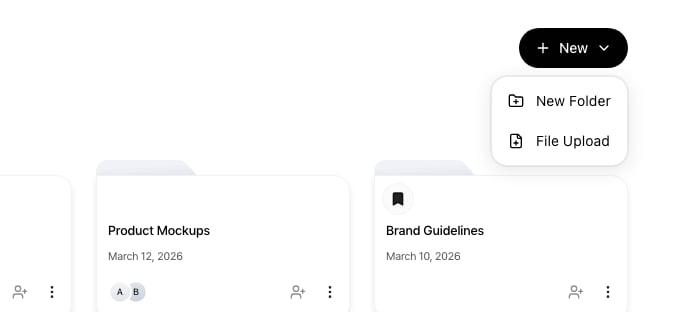 Use folders to organize documents by project or client.
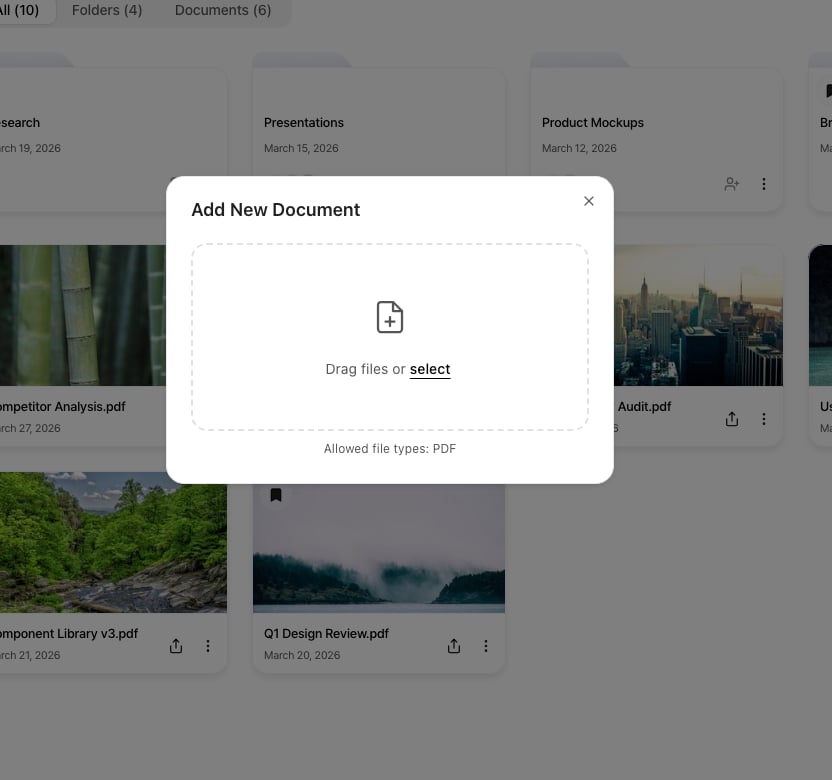
Navigate into a folder first, then upload files. Drag and drop files into the upload area, or click to browse.
Supported formats: **PDF**
Use folders to organize documents by project or client.
Navigate into a folder first, then upload files. Drag and drop files into the upload area, or click to browse.
Supported formats: **PDF**
 Once uploaded, the document appears in your document list. Click it to generate a share link and configure viewing analytics.
File size limits vary by subscription plan. A basic allowance is included with the free plan.
***
## Next Steps
Learn the full flow from upload to share link to viewing analytics.
Learn how to securely share your documents.
Explore document viewing data and AI insights.
Learn how to manage your workspace and team settings.
Learn how to integrate with external tools like PowerPoint and Figma.
Once uploaded, the document appears in your document list. Click it to generate a share link and configure viewing analytics.
File size limits vary by subscription plan. A basic allowance is included with the free plan.
***
## Next Steps
Learn the full flow from upload to share link to viewing analytics.
Learn how to securely share your documents.
Explore document viewing data and AI insights.
Learn how to manage your workspace and team settings.
Learn how to integrate with external tools like PowerPoint and Figma.