> ## Documentation Index
> Fetch the complete documentation index at: https://docs.featpaper.com/llms.txt
> Use this file to discover all available pages before exploring further.
# Upload from Adobe Express
> Learn how to export content directly from Adobe Express to FeatPaper.
## What is the Adobe Express Plugin?
The Adobe Express plugin allows you to export content created in Adobe Express directly to FeatPaper.
Social media posts, flyers, presentations, and other content can be converted into shareable documents instantly without separate downloads.
The Adobe Express plugin is available on the **Pro plan** and above.
***
## Installation
Use the link below to go directly to the FeatPaper Add-on page.
**[Install FeatPaper Adobe Express Add-on](https://new.express.adobe.com/add-ons?addOnId=wl8gg64ng)**
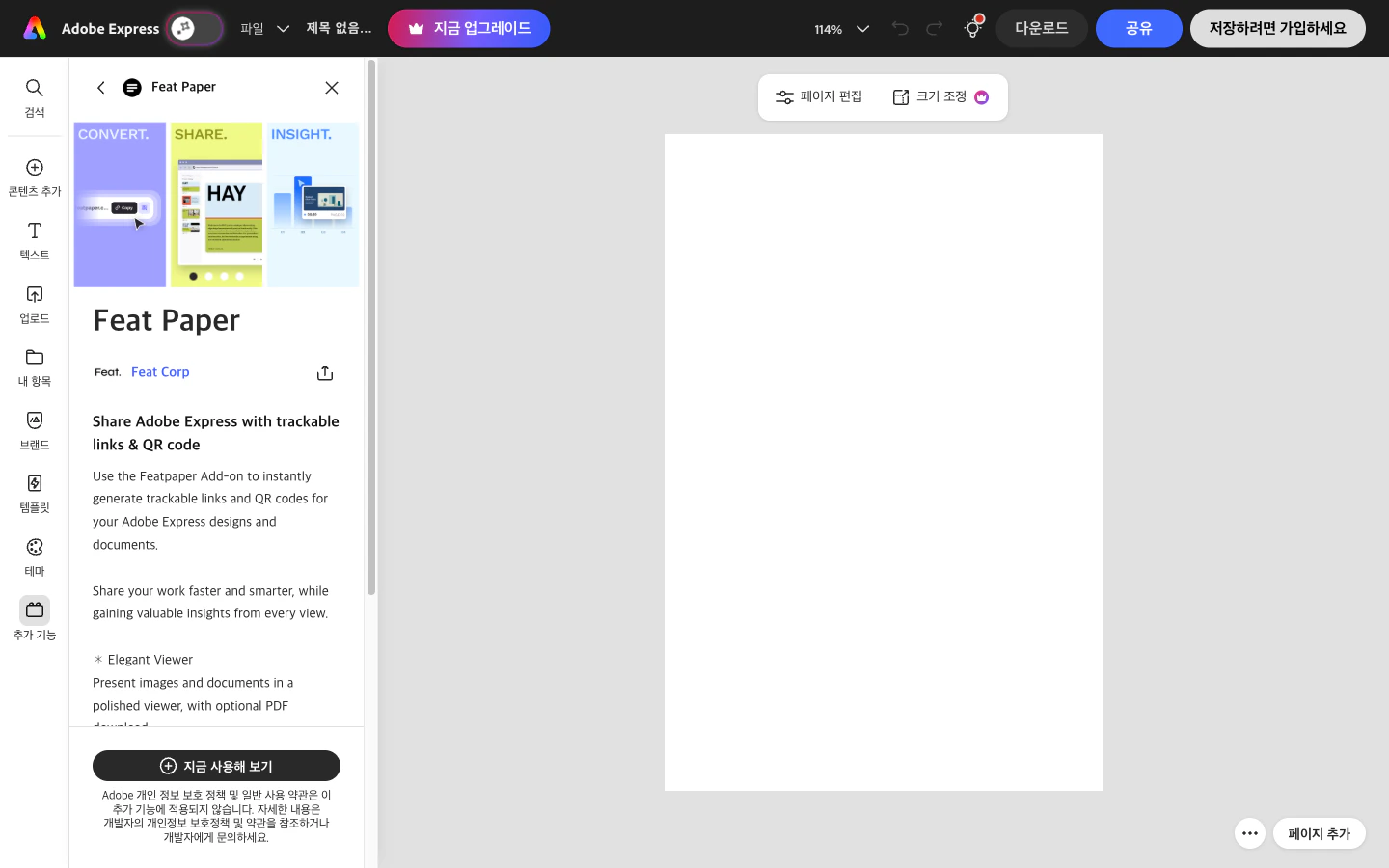 Click the **Add** button on the FeatPaper page to install it.
Check that the FeatPaper icon appears in the sidebar of the Adobe Express editing screen.
Adobe Express runs in a web browser, so no separate desktop app installation is required.
***
## How to Use
Complete the content you want to export in Adobe Express.
Click the **FeatPaper** Add-on in the sidebar to launch it.
Log in with your FeatPaper account. If you are already logged in, skip this step.
Select the workspace and folder where you want to upload the document.
Click the **Export** button to upload the current content to FeatPaper.
***
## Supported Content
Various content types created in Adobe Express can be exported to FeatPaper.
| Content Type | Use Cases |
| ----------------------- | --------------------------------------- |
| **Presentations** | Team presentations, client proposals |
| **Social Media** | Sharing Instagram, Facebook post drafts |
| **Marketing Materials** | Flyers, posters, banner designs |
| **Documents** | Reports, newsletter layouts |
Multi-page content is converted with each page becoming an individual page in the FeatPaper document.
***
## Troubleshooting
* Try refreshing your browser or logging back into Adobe Express.
* Search for FeatPaper in the Add-ons menu to check the installation status.
* Check your internet connection.
* Try logging out of the FeatPaper plugin and logging back in.
* Check whether the content contains unsupported elements.
***
## Next Steps
Learn how to export designs from Figma to FeatPaper.
Learn how to export documents from PowerPoint to FeatPaper.
Click the **Add** button on the FeatPaper page to install it.
Check that the FeatPaper icon appears in the sidebar of the Adobe Express editing screen.
Adobe Express runs in a web browser, so no separate desktop app installation is required.
***
## How to Use
Complete the content you want to export in Adobe Express.
Click the **FeatPaper** Add-on in the sidebar to launch it.
Log in with your FeatPaper account. If you are already logged in, skip this step.
Select the workspace and folder where you want to upload the document.
Click the **Export** button to upload the current content to FeatPaper.
***
## Supported Content
Various content types created in Adobe Express can be exported to FeatPaper.
| Content Type | Use Cases |
| ----------------------- | --------------------------------------- |
| **Presentations** | Team presentations, client proposals |
| **Social Media** | Sharing Instagram, Facebook post drafts |
| **Marketing Materials** | Flyers, posters, banner designs |
| **Documents** | Reports, newsletter layouts |
Multi-page content is converted with each page becoming an individual page in the FeatPaper document.
***
## Troubleshooting
* Try refreshing your browser or logging back into Adobe Express.
* Search for FeatPaper in the Add-ons menu to check the installation status.
* Check your internet connection.
* Try logging out of the FeatPaper plugin and logging back in.
* Check whether the content contains unsupported elements.
***
## Next Steps
Learn how to export designs from Figma to FeatPaper.
Learn how to export documents from PowerPoint to FeatPaper.