> ## Documentation Index
> Fetch the complete documentation index at: https://docs.featpaper.com/llms.txt
> Use this file to discover all available pages before exploring further.
# Upload from PowerPoint
> Learn how to export documents directly from PowerPoint to FeatPaper.
## What is the PowerPoint Plugin?
The PowerPoint plugin allows you to upload presentation files directly from PowerPoint to FeatPaper.
You can instantly export documents you are working on without saving files separately and uploading them through the web.
The PowerPoint plugin is available on the **Pro plan** and above.
***
## Installation
Use the link below to go directly to the FeatPaper plugin page.
**[Install FeatPaper PowerPoint Plugin](https://marketplace.microsoft.com/ko-kr/product/office/wa200006521?tab=overview)**
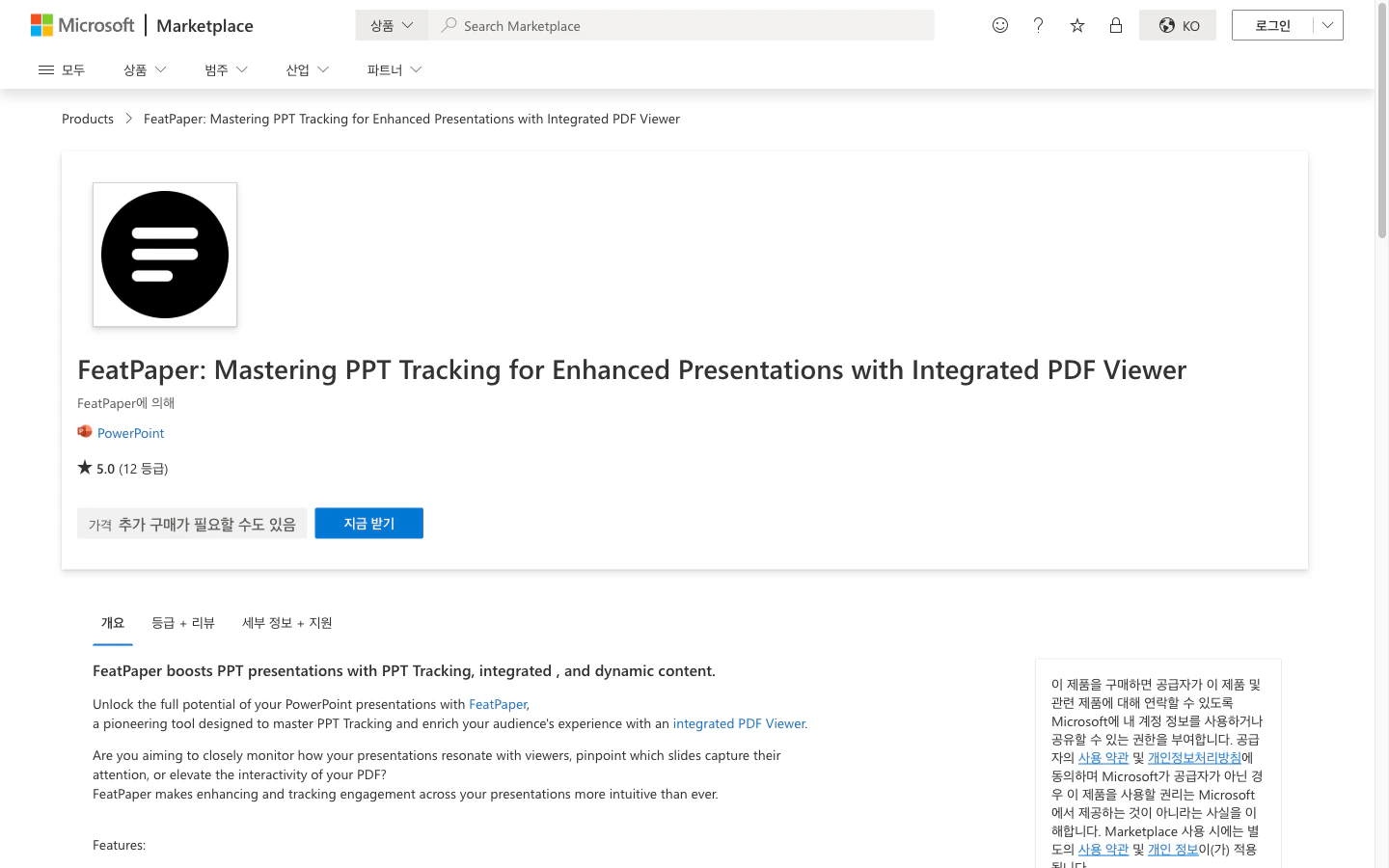 Click the **Get it now** button on the FeatPaper plugin page to install it.
Open PowerPoint and check that FeatPaper is installed under **Insert > Add-ins**.
It works on both Microsoft 365 (web version) and the desktop version.
***
## How to Use
Click the **FeatPaper** plugin in the PowerPoint ribbon menu.
Log in with your FeatPaper account. If you are already logged in, skip this step.
Select the workspace and folder where you want to upload the document.
Click the **Export** button to upload the current presentation to FeatPaper.
***
## Supported Features
| Feature | Description |
| ----------------------- | -------------------------------------------- |
| **Direct Upload** | Export directly from PowerPoint to FeatPaper |
| **Folder Selection** | Select the target folder within the plugin |
| **Workspace Switching** | Choose from multiple workspaces |
After exporting, you can proceed with additional tasks such as creating share links and configuring viewing settings in the FeatPaper dashboard.
***
## Troubleshooting
* Try closing and restarting PowerPoint.
* Check that FeatPaper is enabled under **Insert > Add-ins > My Add-ins**.
* If your organization restricts add-in installations, contact your IT administrator.
* Check your internet connection.
* Verify that the file size does not exceed your plan's upload limit.
* Try logging out of the plugin and logging back in.
***
## Next Steps
Learn how to export designs from Figma to FeatPaper.
Also learn how to upload documents directly from the web.
Click the **Get it now** button on the FeatPaper plugin page to install it.
Open PowerPoint and check that FeatPaper is installed under **Insert > Add-ins**.
It works on both Microsoft 365 (web version) and the desktop version.
***
## How to Use
Click the **FeatPaper** plugin in the PowerPoint ribbon menu.
Log in with your FeatPaper account. If you are already logged in, skip this step.
Select the workspace and folder where you want to upload the document.
Click the **Export** button to upload the current presentation to FeatPaper.
***
## Supported Features
| Feature | Description |
| ----------------------- | -------------------------------------------- |
| **Direct Upload** | Export directly from PowerPoint to FeatPaper |
| **Folder Selection** | Select the target folder within the plugin |
| **Workspace Switching** | Choose from multiple workspaces |
After exporting, you can proceed with additional tasks such as creating share links and configuring viewing settings in the FeatPaper dashboard.
***
## Troubleshooting
* Try closing and restarting PowerPoint.
* Check that FeatPaper is enabled under **Insert > Add-ins > My Add-ins**.
* If your organization restricts add-in installations, contact your IT administrator.
* Check your internet connection.
* Verify that the file size does not exceed your plan's upload limit.
* Try logging out of the plugin and logging back in.
***
## Next Steps
Learn how to export designs from Figma to FeatPaper.
Also learn how to upload documents directly from the web.