> ## Documentation Index
> Fetch the complete documentation index at: https://docs.featpaper.com/llms.txt
> Use this file to discover all available pages before exploring further.
# Invite Team Members to Folders
> Learn how to invite team members to folders and manage access permissions.
## What Is Folder Invitation?
In FeatPaper, you can invite team members to specific folders to grant them access.
Invited members can access the folder and all documents within it.
Folder invitations are limited to members who have already joined your space. To give access to external users, use a document share link instead.
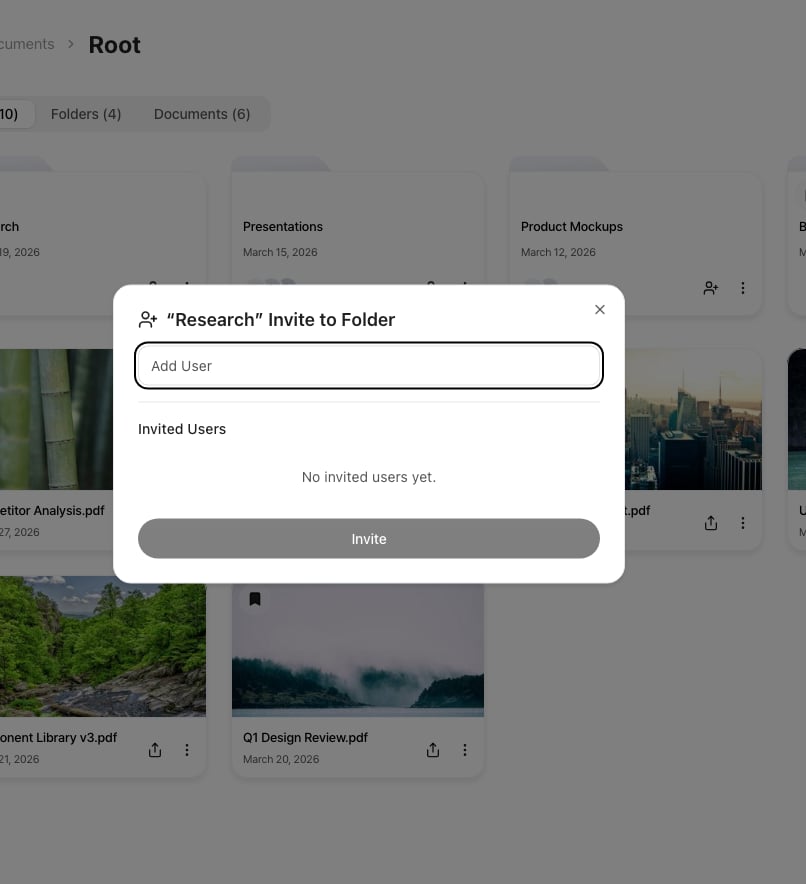 ## Inviting Team Members
Right-click a folder in the sidebar, or click the more (**...**) button next to it.
Select **Invite to Folder** from the context menu.
Search for and select the team members you want to invite, then choose their permission level (**can edit** or **can view**).
Click **Invite** to grant the selected members access to the folder.
## Accessing Invited Folders
Invited team members can see the folder directly in their sidebar.
## Managing Permissions
In the invitation dialog, you can view all team members who currently have access to the folder.
| Permission | Description |
| ------------ | ----------------------------------------- |
| **can edit** | Can manage documents within the folder |
| **can view** | Can only view documents within the folder |
You can change each member's permission level or revoke their access.
## Revoking Access
Right-click the folder in the sidebar and select **Invite to Folder**.
Click the **Remove** button next to the member you want to remove.
Organize your documents into folders by project, then invite the relevant team members — it makes access management much simpler.
## Inviting Team Members
Right-click a folder in the sidebar, or click the more (**...**) button next to it.
Select **Invite to Folder** from the context menu.
Search for and select the team members you want to invite, then choose their permission level (**can edit** or **can view**).
Click **Invite** to grant the selected members access to the folder.
## Accessing Invited Folders
Invited team members can see the folder directly in their sidebar.
## Managing Permissions
In the invitation dialog, you can view all team members who currently have access to the folder.
| Permission | Description |
| ------------ | ----------------------------------------- |
| **can edit** | Can manage documents within the folder |
| **can view** | Can only view documents within the folder |
You can change each member's permission level or revoke their access.
## Revoking Access
Right-click the folder in the sidebar and select **Invite to Folder**.
Click the **Remove** button next to the member you want to remove.
Organize your documents into folders by project, then invite the relevant team members — it makes access management much simpler.