> ## Documentation Index
> Fetch the complete documentation index at: https://docs.featpaper.com/llms.txt
> Use this file to discover all available pages before exploring further.
# Share via Link
> Learn how to create and manage share links for your documents.
## What Are Share Links?
In FeatPaper, you can create a unique share link for each document to distribute it to external users.
Recipients can view the document through the share link without needing to sign up for an account.
 ## Copying the Default Share Link
Click on the document you want to share to open the document detail page.
Click **Share** in the top tab bar.
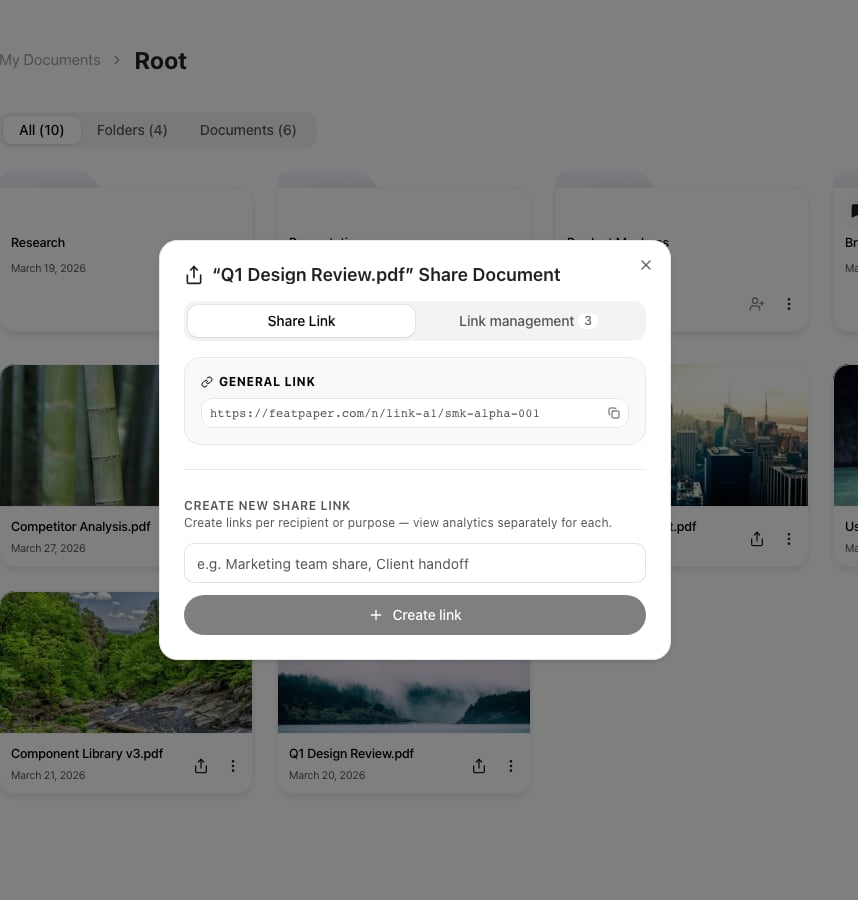
Click the default share link shown at the top of the Share tab to copy the URL. You can then send it via email, messenger, or other channels.
## Creating a Tracked Link
You can create **Tracked Links** that enable individual tracking per recipient. Assign a name to each link so you can easily identify which channel a visitor came from.
## Copying the Default Share Link
Click on the document you want to share to open the document detail page.
Click **Share** in the top tab bar.
Click the default share link shown at the top of the Share tab to copy the URL. You can then send it via email, messenger, or other channels.
## Creating a Tracked Link
You can create **Tracked Links** that enable individual tracking per recipient. Assign a name to each link so you can easily identify which channel a visitor came from.
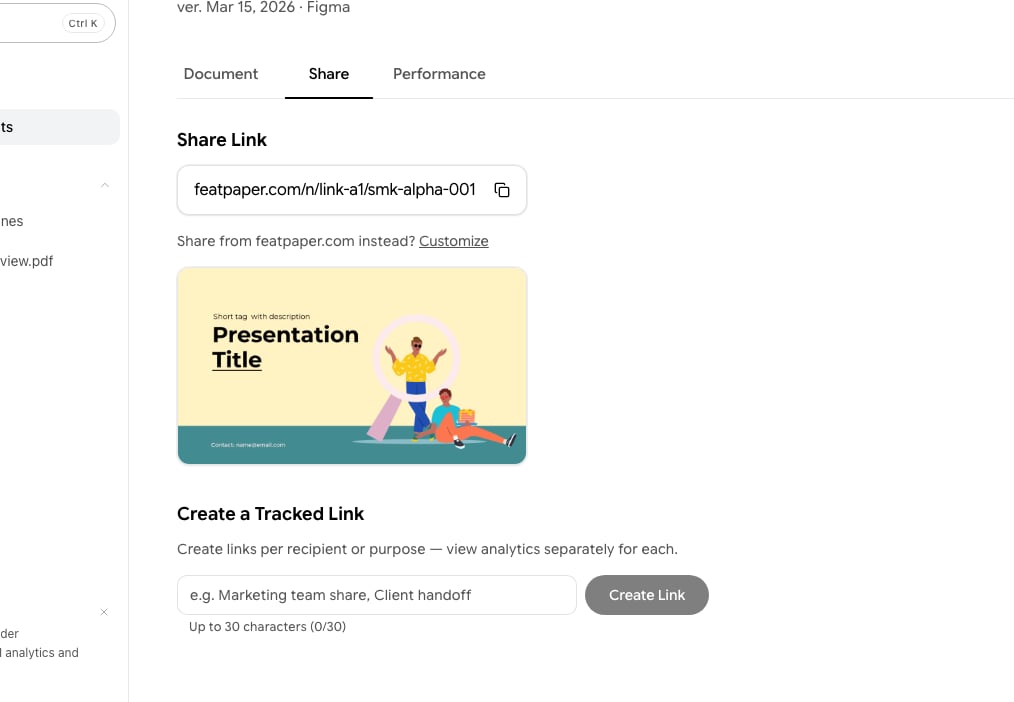 Type a name for the link (e.g., Marketing Team, Client A) in the input field under the **Create Link** section. Names can be up to **30 characters**.
Click the **Create** button or press Enter to generate a unique link.
Click the generated link to copy it, then send it to the intended recipient.
**Free plan limitation**: On the Free plan, you can create up to **3 tracked links per document**. Once the limit is reached, the create button displays a padlock icon — clicking it shows a plan upgrade prompt. On the Pro plan and above, you can create unlimited tracked links.
***
## Understanding Link Types
FeatPaper's share links are automatically assigned the appropriate type based on how you share. You don't need to manually select a link type, but understanding each type helps when analyzing tracking data.
| Link Type | Name | Description |
| --------- | ------------------ | -------------------------------------------------------------------------------------------------------------------------------------------------------------------------------- |
| `/n/` | **Space Link** | A link generated from a workspace. Space-based tracking is applied, optimized for team-level document sharing and analytics. |
| `/u/` | **Dedicated Link** | A unique link is generated per recipient, enabling individual tracking. Supports lead form collection and URL-based view count aggregation. Created directly from the Share tab. |
Dedicated links (`/u/`) allow you to track viewing data separately for each recipient, even when sharing the same document with multiple people. This is especially useful when sending proposals to multiple clients.
Legacy `/v/` dedicated links are maintained for backward compatibility. Newly generated dedicated links use the `/u/` path.
Type a name for the link (e.g., Marketing Team, Client A) in the input field under the **Create Link** section. Names can be up to **30 characters**.
Click the **Create** button or press Enter to generate a unique link.
Click the generated link to copy it, then send it to the intended recipient.
**Free plan limitation**: On the Free plan, you can create up to **3 tracked links per document**. Once the limit is reached, the create button displays a padlock icon — clicking it shows a plan upgrade prompt. On the Pro plan and above, you can create unlimited tracked links.
***
## Understanding Link Types
FeatPaper's share links are automatically assigned the appropriate type based on how you share. You don't need to manually select a link type, but understanding each type helps when analyzing tracking data.
| Link Type | Name | Description |
| --------- | ------------------ | -------------------------------------------------------------------------------------------------------------------------------------------------------------------------------- |
| `/n/` | **Space Link** | A link generated from a workspace. Space-based tracking is applied, optimized for team-level document sharing and analytics. |
| `/u/` | **Dedicated Link** | A unique link is generated per recipient, enabling individual tracking. Supports lead form collection and URL-based view count aggregation. Created directly from the Share tab. |
Dedicated links (`/u/`) allow you to track viewing data separately for each recipient, even when sharing the same document with multiple people. This is especially useful when sending proposals to multiple clients.
Legacy `/v/` dedicated links are maintained for backward compatibility. Newly generated dedicated links use the `/u/` path.