> ## Documentation Index
> Fetch the complete documentation index at: https://docs.featpaper.com/llms.txt
> Use this file to discover all available pages before exploring further.
# Customize Your Brand
> Learn how to configure the logo, lead capture form, and communication channels displayed in the viewer.
## What is Branding?
Through branding settings, you can customize the logo, lead capture form, and communication channels displayed in the document viewer.
Manage all branding options from **Settings > Branding**.
 ***
## Logo Settings
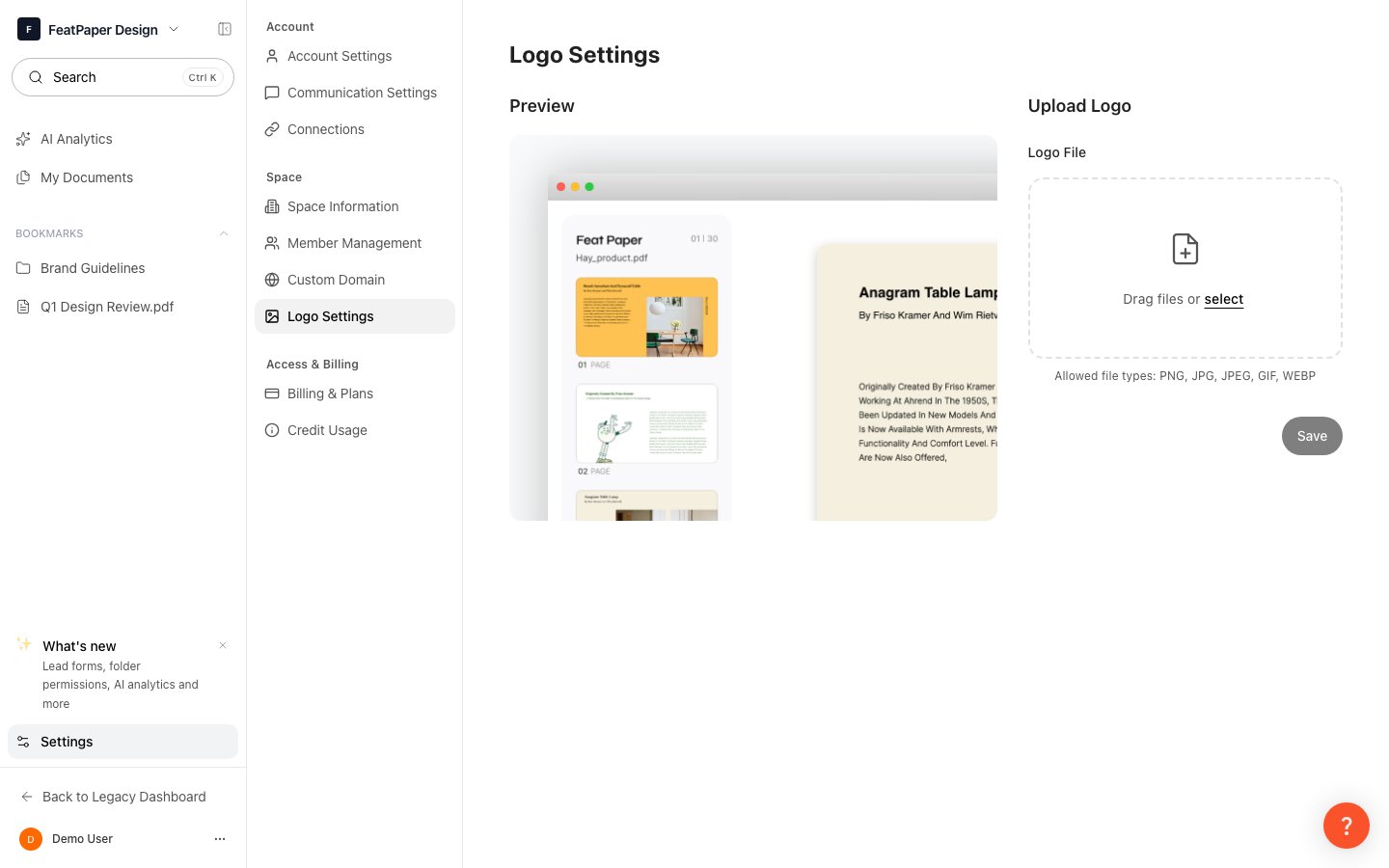
You can register a custom logo to be displayed on the viewer screen.
Navigate to **Settings > Branding** in the sidebar.
Upload a logo image in the **Logo** section. PNG or SVG format is recommended.
Click the **Save** button, and the logo will be displayed in the viewer for all subsequently created shared links.
Using a logo with a transparent background blends naturally with the viewer design.
***
## Lead Capture Form
You can set up a form to collect recipient information before they view the document.
| Setting | Description |
| ----------------- | ----------------------------------------------------------------------------- |
| **Form Title** | The instructional text displayed at the top of the lead form |
| **Custom Fields** | Freely add fields to collect such as name, company, job title, etc. |
| **Consent Text** | Legal notice text such as personal data collection consent |
| **Email Options** | Option to allow only corporate emails, blocking personal emails (gmail, etc.) |
Enable the **Lead Capture Form** in the Branding settings.
Add custom fields for the information you want to collect and set whether each is required.
Enter consent text regarding personal data collection.
When the corporate email only option is enabled, the form cannot be submitted with personal email domains such as gmail.com or naver.com. This is useful for B2B sales materials.
***
## Communication Channels
Configure the contact information displayed on the viewer screen. Recipients can reach out directly while viewing the document.
| Channel Type | Description |
| ------------ | ----------------------------------------------------------------- |
| **URL** | Freely add links such as a website, LinkedIn, or calendar booking |
| **Email** | Business email address |
| **Phone** | Available phone number |
***
## CTA Button
You can configure a call-to-action (CTA) button displayed at the bottom of the viewer.
Click **Add CTA Button** at the bottom of the communication channel settings.
Enter the text to display on the button and the URL to navigate to when clicked.
The number of communication channels you can register varies by plan.
* **Basic / Plus / Pro**: up to **3**
* **Business**: up to **5**
***
## Next Steps
Connect your own domain to complete your brand experience.
Share a document with your branding applied.
***
## Logo Settings
You can register a custom logo to be displayed on the viewer screen.
Navigate to **Settings > Branding** in the sidebar.
Upload a logo image in the **Logo** section. PNG or SVG format is recommended.
Click the **Save** button, and the logo will be displayed in the viewer for all subsequently created shared links.
Using a logo with a transparent background blends naturally with the viewer design.
***
## Lead Capture Form
You can set up a form to collect recipient information before they view the document.
| Setting | Description |
| ----------------- | ----------------------------------------------------------------------------- |
| **Form Title** | The instructional text displayed at the top of the lead form |
| **Custom Fields** | Freely add fields to collect such as name, company, job title, etc. |
| **Consent Text** | Legal notice text such as personal data collection consent |
| **Email Options** | Option to allow only corporate emails, blocking personal emails (gmail, etc.) |
Enable the **Lead Capture Form** in the Branding settings.
Add custom fields for the information you want to collect and set whether each is required.
Enter consent text regarding personal data collection.
When the corporate email only option is enabled, the form cannot be submitted with personal email domains such as gmail.com or naver.com. This is useful for B2B sales materials.
***
## Communication Channels
Configure the contact information displayed on the viewer screen. Recipients can reach out directly while viewing the document.
| Channel Type | Description |
| ------------ | ----------------------------------------------------------------- |
| **URL** | Freely add links such as a website, LinkedIn, or calendar booking |
| **Email** | Business email address |
| **Phone** | Available phone number |
***
## CTA Button
You can configure a call-to-action (CTA) button displayed at the bottom of the viewer.
Click **Add CTA Button** at the bottom of the communication channel settings.
Enter the text to display on the button and the URL to navigate to when clicked.
The number of communication channels you can register varies by plan.
* **Basic / Plus / Pro**: up to **3**
* **Business**: up to **5**
***
## Next Steps
Connect your own domain to complete your brand experience.
Share a document with your branding applied.