> ## Documentation Index
> Fetch the complete documentation index at: https://docs.featpaper.com/llms.txt
> Use this file to discover all available pages before exploring further.
# Space Settings
> Learn how to configure and manage your space.
## What is a Space?
A space is an independent work area in FeatPaper for managing documents and teams.
***
## Changing Space Settings
Navigate to **Settings > Workspace** in the sidebar to modify space information.
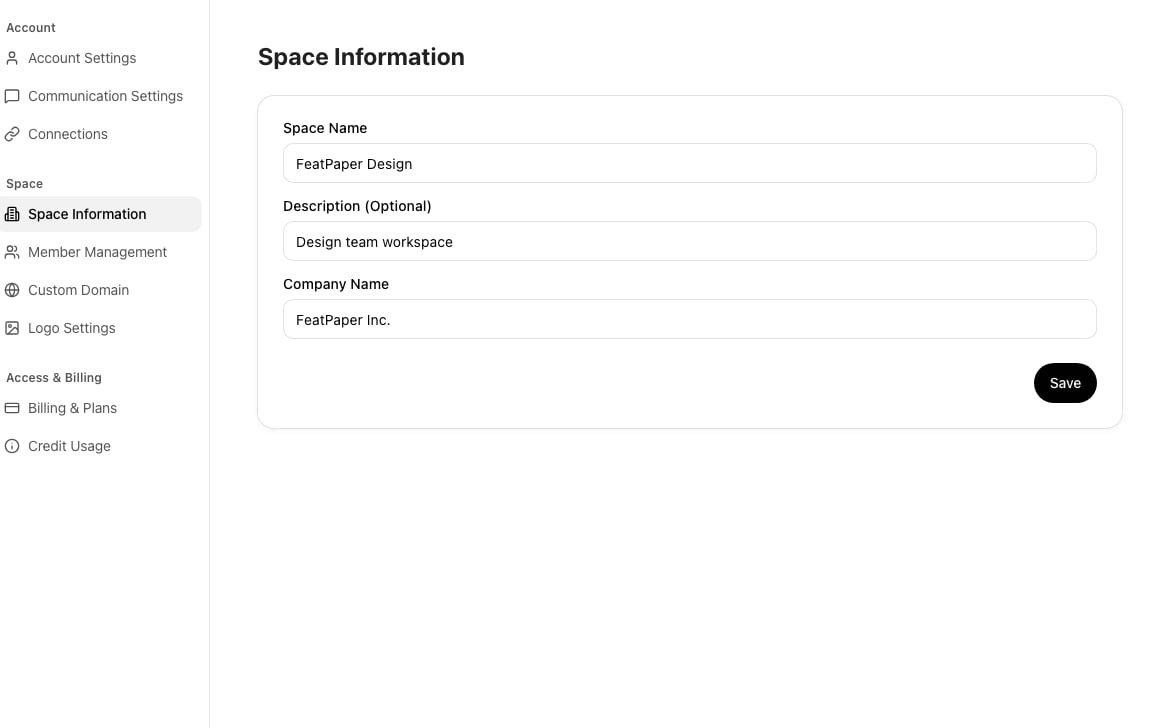 | Setting | Description |
| ---------------- | --------------------------------------------------------------------- |
| **Space Name** | The name displayed in the sidebar and dashboard |
| **Description** | Describes the purpose or objective of the space (optional) |
| **Company Name** | The company name displayed in the document viewer and sharing screens |
The company name is also reflected in the shared link viewer, so make sure to enter accurate information for external use.
***
## Switching Spaces
Click the current space name at the top of the sidebar to display a list of spaces you belong to. Select one to switch immediately.
***
## Next Steps
Configure the logo, lead form, and communication channels displayed in the viewer.
Connect your own domain to enhance brand consistency.
| Setting | Description |
| ---------------- | --------------------------------------------------------------------- |
| **Space Name** | The name displayed in the sidebar and dashboard |
| **Description** | Describes the purpose or objective of the space (optional) |
| **Company Name** | The company name displayed in the document viewer and sharing screens |
The company name is also reflected in the shared link viewer, so make sure to enter accurate information for external use.
***
## Switching Spaces
Click the current space name at the top of the sidebar to display a list of spaces you belong to. Select one to switch immediately.
***
## Next Steps
Configure the logo, lead form, and communication channels displayed in the viewer.
Connect your own domain to enhance brand consistency.