> ## Documentation Index
> Fetch the complete documentation index at: https://docs.featpaper.com/llms.txt
> Use this file to discover all available pages before exploring further.
# Adobe Express에서 바로 올리기
> Adobe Express에서 직접 FeatPaper로 콘텐츠를 내보내는 방법을 안내합니다.
## Adobe Express 플러그인이란?
Adobe Express 플러그인을 사용하면 Adobe Express에서 제작한 콘텐츠를 FeatPaper로 바로 내보낼 수 있습니다.
소셜 미디어 게시물, 전단지, 프레젠테이션 등 다양한 콘텐츠를 별도 다운로드 없이 즉시 공유 가능한 문서로 변환됩니다.
Adobe Express 플러그인은 **Pro 플랜** 이상에서 사용할 수 있습니다.
***
## 설치하기
아래 링크에서 FeatPaper Add-on 페이지로 바로 이동할 수 있습니다.
**[FeatPaper Adobe Express Add-on 설치 페이지](https://new.express.adobe.com/add-ons?addOnId=wl8gg64ng)**
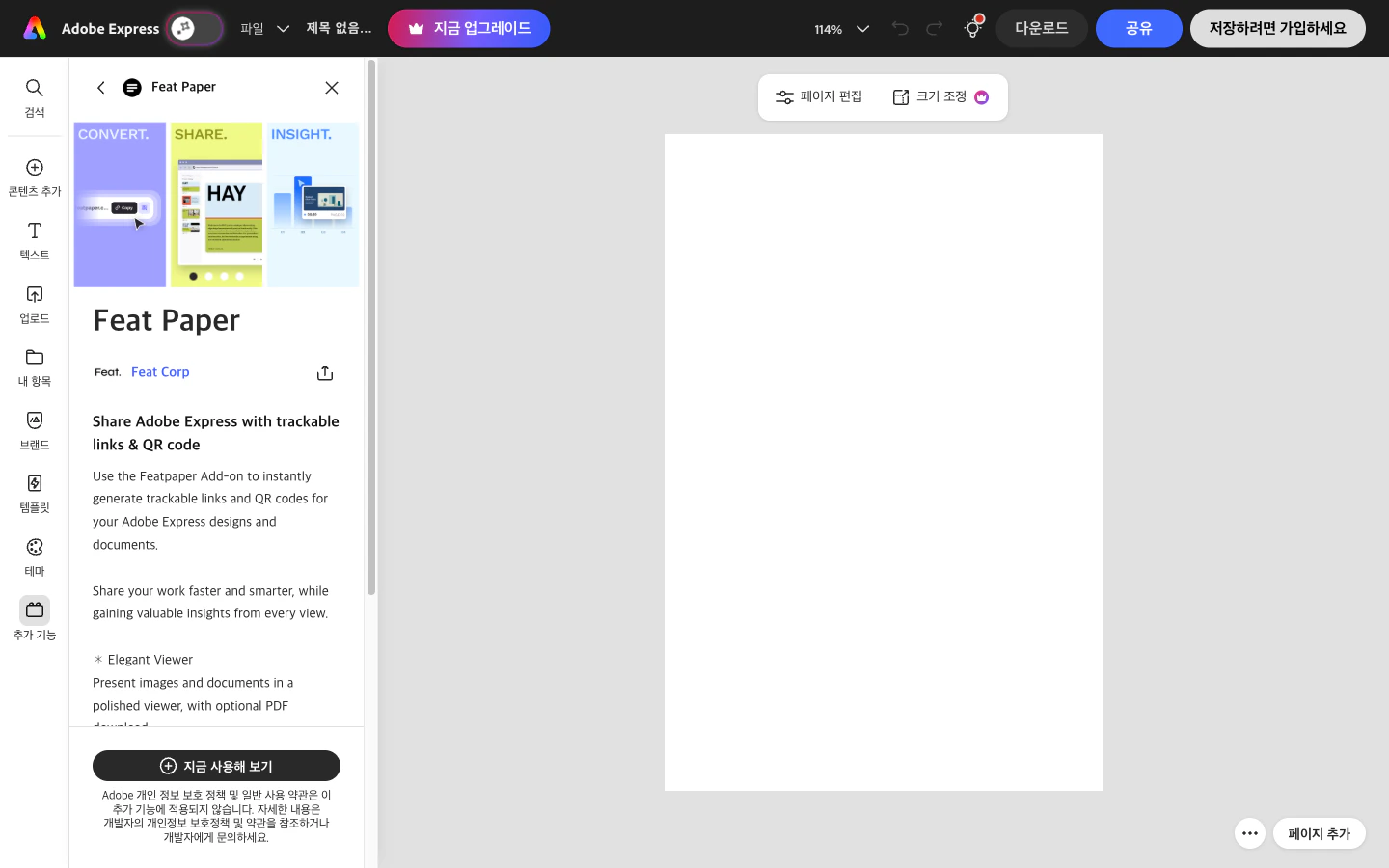 FeatPaper 페이지에서 **Add** 버튼을 클릭하여 설치합니다.
Adobe Express 편집 화면의 사이드바에서 FeatPaper 아이콘이 나타나는지 확인합니다.
Adobe Express는 웹 브라우저에서 동작하므로 별도의 데스크톱 앱 설치가 필요 없습니다.
***
## 사용 방법
Adobe Express에서 내보낼 콘텐츠를 완성합니다.
사이드바에서 **FeatPaper** Add-on을 클릭하여 실행합니다.
FeatPaper 계정으로 로그인합니다. 이미 로그인되어 있다면 이 단계는 건너뜁니다.
문서를 업로드할 워크스페이스와 폴더를 선택합니다.
**내보내기** 버튼을 클릭하면 현재 콘텐츠가 FeatPaper에 업로드됩니다.
***
## 지원 콘텐츠
Adobe Express에서 제작한 다양한 콘텐츠 유형을 FeatPaper로 내보낼 수 있습니다.
| 콘텐츠 유형 | 활용 예시 |
| ---------- | ----------------------------- |
| **프레젠테이션** | 팀 발표, 클라이언트 제안 |
| **소셜 미디어** | Instagram, Facebook 게시물 시안 공유 |
| **마케팅 자료** | 전단지, 포스터, 배너 디자인 |
| **문서** | 보고서, 뉴스레터 레이아웃 |
여러 페이지로 구성된 콘텐츠는 각 페이지가 FeatPaper 문서의 개별 페이지로 변환됩니다.
***
## 문제 해결
* 브라우저를 새로고침하거나 Adobe Express에 다시 로그인해 보세요.
* Add-ons 메뉴에서 FeatPaper를 검색하여 설치 상태를 확인하세요.
* 인터넷 연결 상태를 확인하세요.
* FeatPaper 플러그인에서 로그아웃 후 다시 로그인해 보세요.
* 콘텐츠에 지원되지 않는 요소가 포함되어 있는지 확인하세요.
***
## 다음 단계
Figma에서 디자인을 FeatPaper로 내보내는 방법을 알아보세요.
PowerPoint에서 문서를 내보내는 방법을 알아보세요.
FeatPaper 페이지에서 **Add** 버튼을 클릭하여 설치합니다.
Adobe Express 편집 화면의 사이드바에서 FeatPaper 아이콘이 나타나는지 확인합니다.
Adobe Express는 웹 브라우저에서 동작하므로 별도의 데스크톱 앱 설치가 필요 없습니다.
***
## 사용 방법
Adobe Express에서 내보낼 콘텐츠를 완성합니다.
사이드바에서 **FeatPaper** Add-on을 클릭하여 실행합니다.
FeatPaper 계정으로 로그인합니다. 이미 로그인되어 있다면 이 단계는 건너뜁니다.
문서를 업로드할 워크스페이스와 폴더를 선택합니다.
**내보내기** 버튼을 클릭하면 현재 콘텐츠가 FeatPaper에 업로드됩니다.
***
## 지원 콘텐츠
Adobe Express에서 제작한 다양한 콘텐츠 유형을 FeatPaper로 내보낼 수 있습니다.
| 콘텐츠 유형 | 활용 예시 |
| ---------- | ----------------------------- |
| **프레젠테이션** | 팀 발표, 클라이언트 제안 |
| **소셜 미디어** | Instagram, Facebook 게시물 시안 공유 |
| **마케팅 자료** | 전단지, 포스터, 배너 디자인 |
| **문서** | 보고서, 뉴스레터 레이아웃 |
여러 페이지로 구성된 콘텐츠는 각 페이지가 FeatPaper 문서의 개별 페이지로 변환됩니다.
***
## 문제 해결
* 브라우저를 새로고침하거나 Adobe Express에 다시 로그인해 보세요.
* Add-ons 메뉴에서 FeatPaper를 검색하여 설치 상태를 확인하세요.
* 인터넷 연결 상태를 확인하세요.
* FeatPaper 플러그인에서 로그아웃 후 다시 로그인해 보세요.
* 콘텐츠에 지원되지 않는 요소가 포함되어 있는지 확인하세요.
***
## 다음 단계
Figma에서 디자인을 FeatPaper로 내보내는 방법을 알아보세요.
PowerPoint에서 문서를 내보내는 방법을 알아보세요.