
What Are Bookmarks?
Bookmarks let you save frequently used documents and folders as favorites so you can quickly access them from the sidebar. Bookmarks are managed per user and are not visible to other members.Adding Bookmarks
- Bookmark a document
- Bookmark a folder
1
Find the document
Locate the document you want to bookmark on the Documents screen.
2
Click the bookmark icon
Click the bookmark icon on the right side of the document item. When the icon is filled in, the bookmark has been added.
Viewing Bookmarks on the Dashboard
You can view all your bookmarked documents and folders at a glance in the BOOKMARKS section in the sidebar.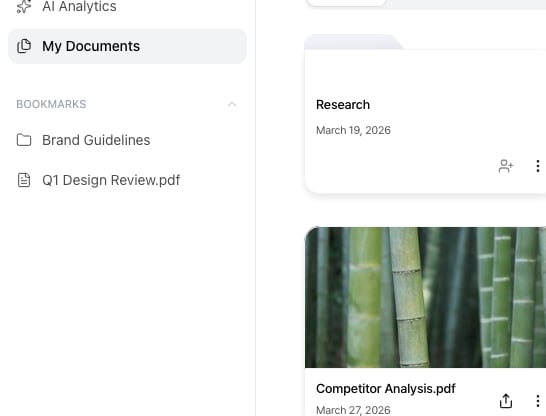
View your favorited items in the BOOKMARKS section of the sidebar
The Bookmarks section is available in the BOOKMARKS area of the sidebar.
Removing Bookmarks
1
Find the bookmarked item
Locate the bookmarked item in the sidebar BOOKMARKS section or on the Documents screen.
2
Remove the bookmark
Click the filled bookmark icon again to remove the bookmark.