
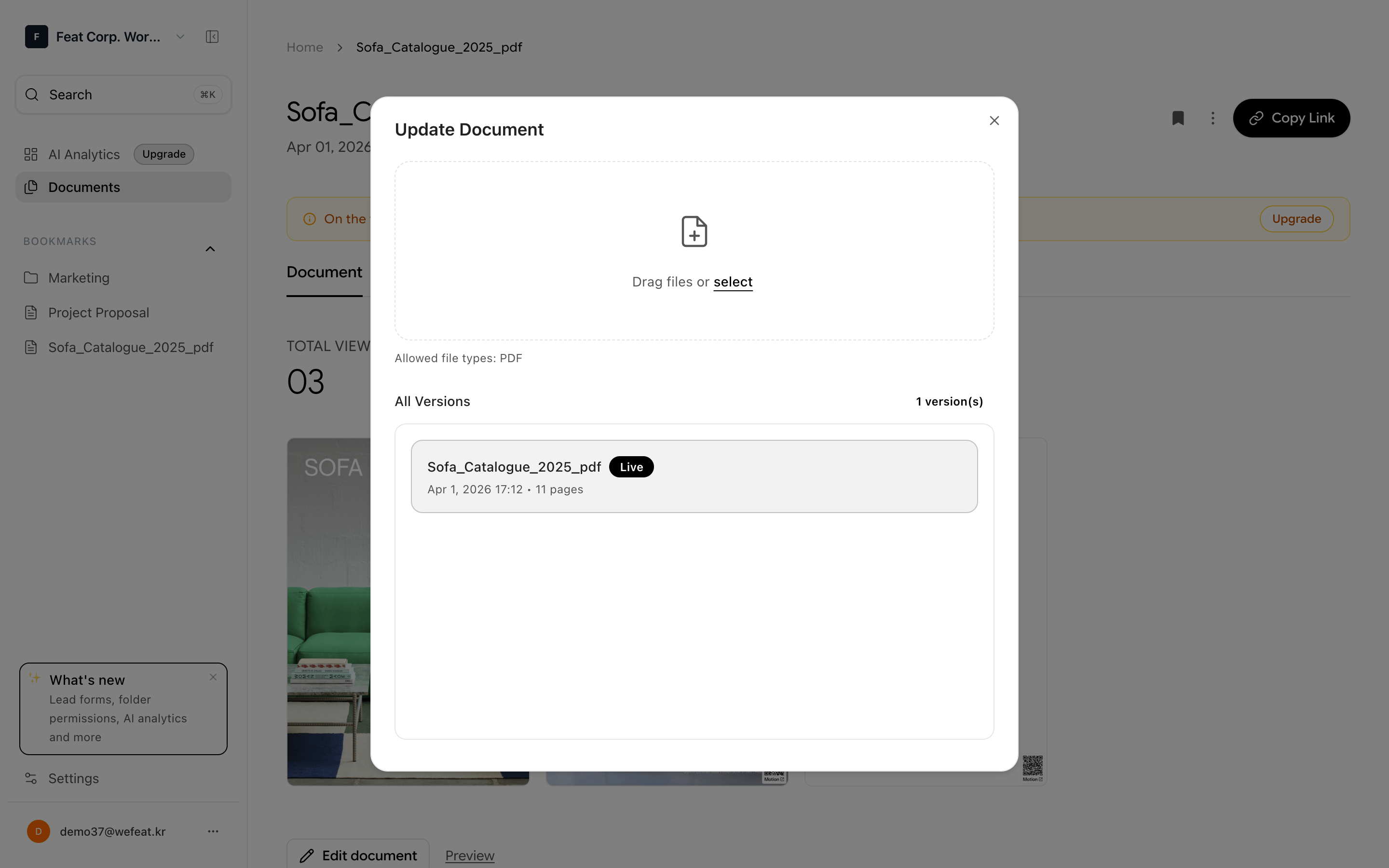
Review document change history in version history
Viewing Version History
1
Select a Document
Click the document you want to check versions for in the document list.
2
Open Version History
Click the Version History menu on the document detail screen.
3
Review the Version List
View each version’s upload date, file name, page count, and more. Click a version to preview that version of the document.
Version numbers increment automatically with each update. The latest version is displayed at the top.
Updating Documents
Upload a new file to an existing document to update it. Existing share links remain unchanged.1
Go to Document Details
Click the document you want to update to open its detail screen.
2
Click Update
Click the Update Document button.
3
Upload a New File
Select and upload a new file (PDF, PPT, or PPTX).
4
Update Complete
After conversion processing, the new version is applied. Viewers accessing the existing share link will see the latest version.
Restoring a Previous Version
1
Open Version History
Open Version History from the document detail screen.
2
Select the Version to Restore
Click the Restore button for the version you want to restore.
3
Confirm Restoration
Approve in the confirmation dialog, and the selected version will become the latest version.
Viewing Analytics
Learn how to leverage document viewing data and AI insights.
Share Link Settings
Learn about detailed share link configuration options.