
How to Upload Documents
1
Navigate to the Upload Area
Click Documents in the sidebar and navigate to the desired folder. When a folder is empty, a dashed-border upload area is displayed in the center.
2
Select Files
Drag and drop files into the upload area, or click the upload area to select files from your file explorer.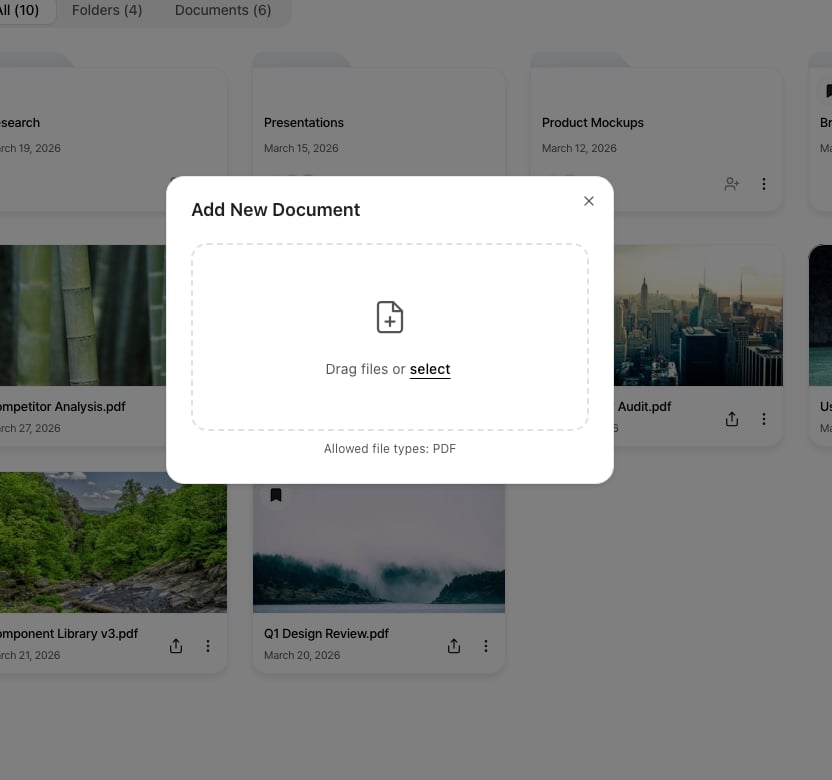
3
Confirm Upload
Once the upload is complete, the document will appear in the document list. Conversion processing will begin, and you can generate a share link once it finishes.
Supported Formats
PPT/PPTX files are automatically converted to PDF on the server after upload. Conversion may take anywhere from a few seconds to several minutes depending on file size.
Plugin Upload
You can upload directly to FeatPaper from external tools. When viewing an empty folder’s upload area, icons for the Figma, Adobe Express, and PowerPoint plugins are shown at the bottom — clicking one takes you directly to that plugin’s installation page.PowerPoint
Upload directly from the PowerPoint add-in.
Figma
Convert design files to PDF and upload using the Figma plugin.
Express
Quickly upload using the Express plugin.
File Size Limits
The maximum file size for uploads varies by subscription plan.Post-Upload Processing
1
File Validation
The uploaded file’s format and size are validated.
2
PDF Conversion
PPT/PPTX files are automatically converted to PDF. PDF files skip this step.
3
Page Processing
Each page is converted to images to ensure fast viewer loading.
4
Viewer Ready
Once processing is complete, you can generate share links and start tracking viewing analytics.