
What Is Folder Invitation?
In FeatPaper, you can invite team members to specific folders to grant them access. Invited members can access the folder and all documents within it.Folder invitations are limited to members who have already joined your space. To give access to external users, use a document share link instead.
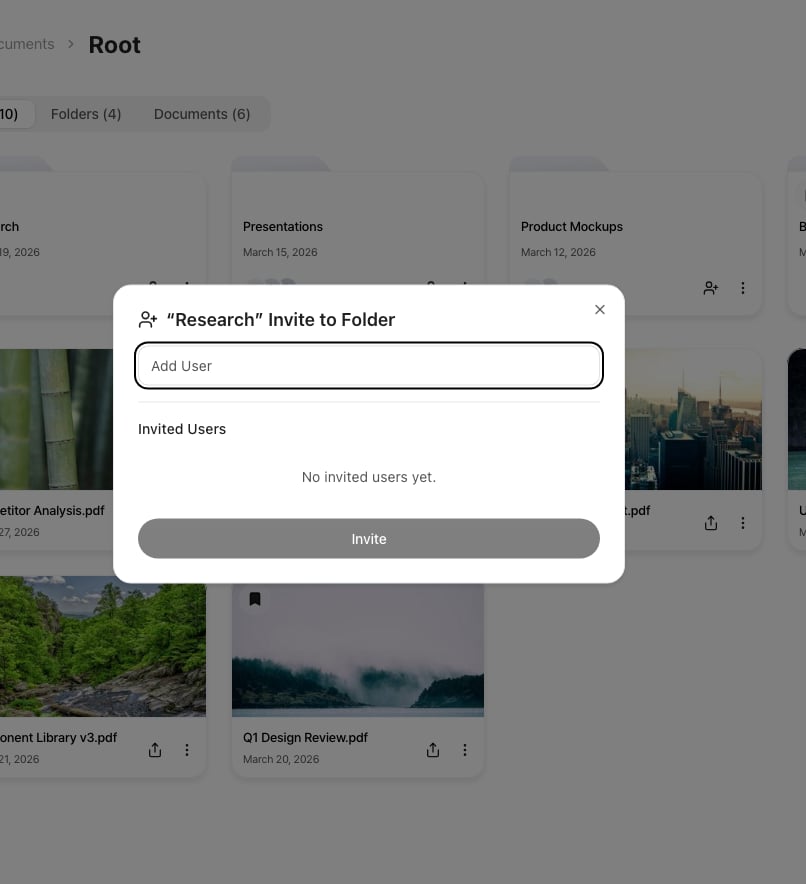
Add team members from the folder invitation dialog
Inviting Team Members
1
Select a Folder
Right-click a folder in the sidebar, or click the more (…) button next to it.
2
Open Invitation Menu
Select Invite to Folder from the context menu.
3
Add Team Members
Search for and select the team members you want to invite, then choose their permission level (can edit or can view).
4
Complete Invitation
Click Invite to grant the selected members access to the folder.
Accessing Invited Folders
Invited team members can see the folder directly in their sidebar.Managing Permissions
In the invitation dialog, you can view all team members who currently have access to the folder.
You can change each member’s permission level or revoke their access.
Revoking Access
1
Open Folder Invitation Settings
Right-click the folder in the sidebar and select Invite to Folder.
2
Remove a Member
Click the Remove button next to the member you want to remove.