
What is the Adobe Express Plugin?
The Adobe Express plugin allows you to export content created in Adobe Express directly to FeatPaper. Social media posts, flyers, presentations, and other content can be converted into shareable documents instantly without separate downloads.Installation
1
Visit Adobe Express Add-ons
Use the link below to go directly to the FeatPaper Add-on page.Install FeatPaper Adobe Express Add-on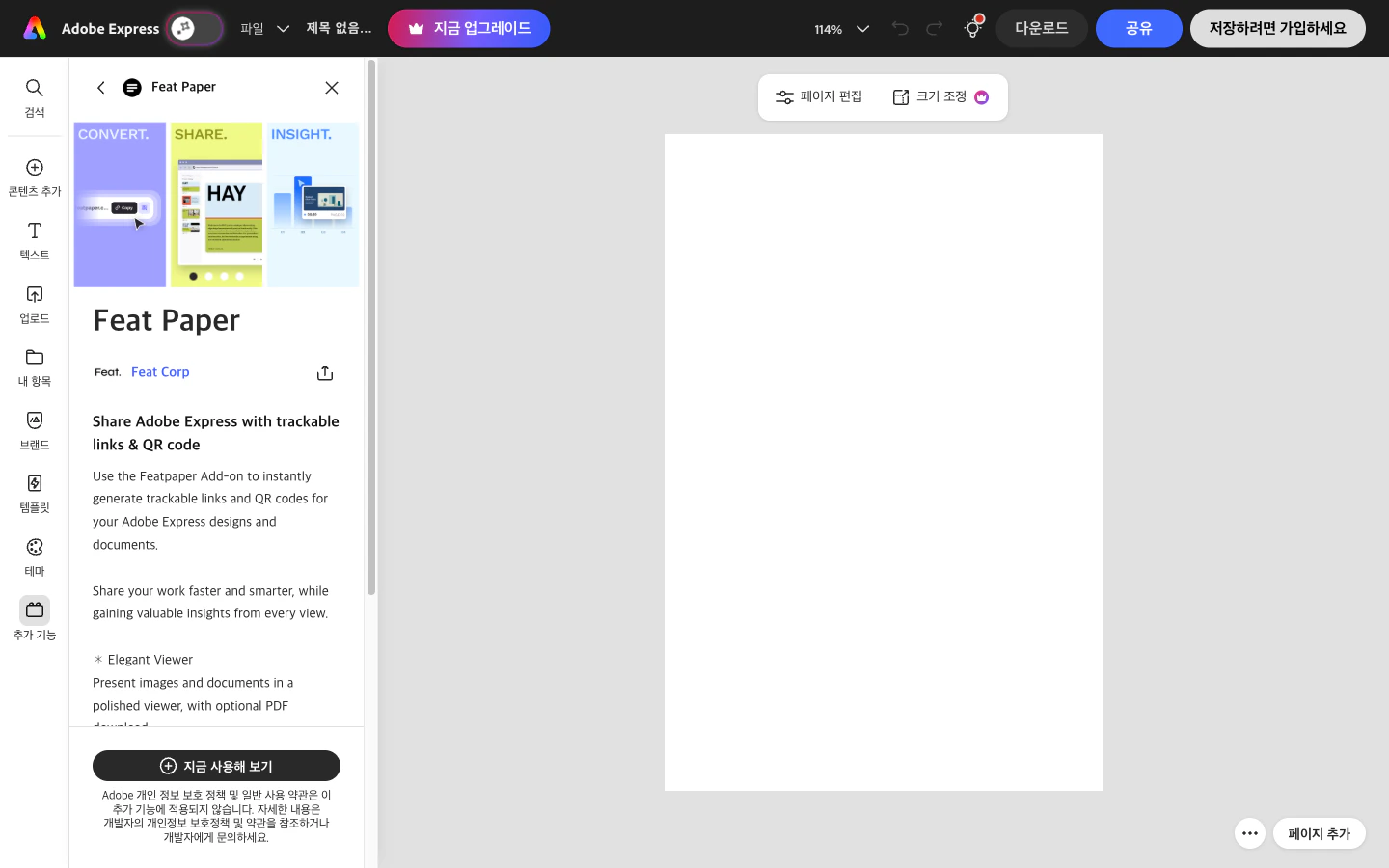
FeatPaper page on Adobe Express Add-ons
2
Install the Add-on
Click the Add button on the FeatPaper page to install it.
3
Verify Installation
Check that the FeatPaper icon appears in the sidebar of the Adobe Express editing screen.
How to Use
1
Prepare Content
Complete the content you want to export in Adobe Express.
2
Launch the Plugin
Click the FeatPaper Add-on in the sidebar to launch it.
3
Log In
Log in with your FeatPaper account. If you are already logged in, skip this step.
4
Select Workspace and Folder
Select the workspace and folder where you want to upload the document.
5
Export
Click the Export button to upload the current content to FeatPaper.
Supported Content
Various content types created in Adobe Express can be exported to FeatPaper.Multi-page content is converted with each page becoming an individual page in the FeatPaper document.
Troubleshooting
- Add-on Not Visible
- Export Fails
- Try refreshing your browser or logging back into Adobe Express.
- Search for FeatPaper in the Add-ons menu to check the installation status.
Next Steps
Figma Plugin
Learn how to export designs from Figma to FeatPaper.
PowerPoint Plugin
Learn how to export documents from PowerPoint to FeatPaper.