
What Are Folders?
Folders let you organize documents by project, client, or topic. You can create subfolders for a hierarchical structure and invite team members at the folder level.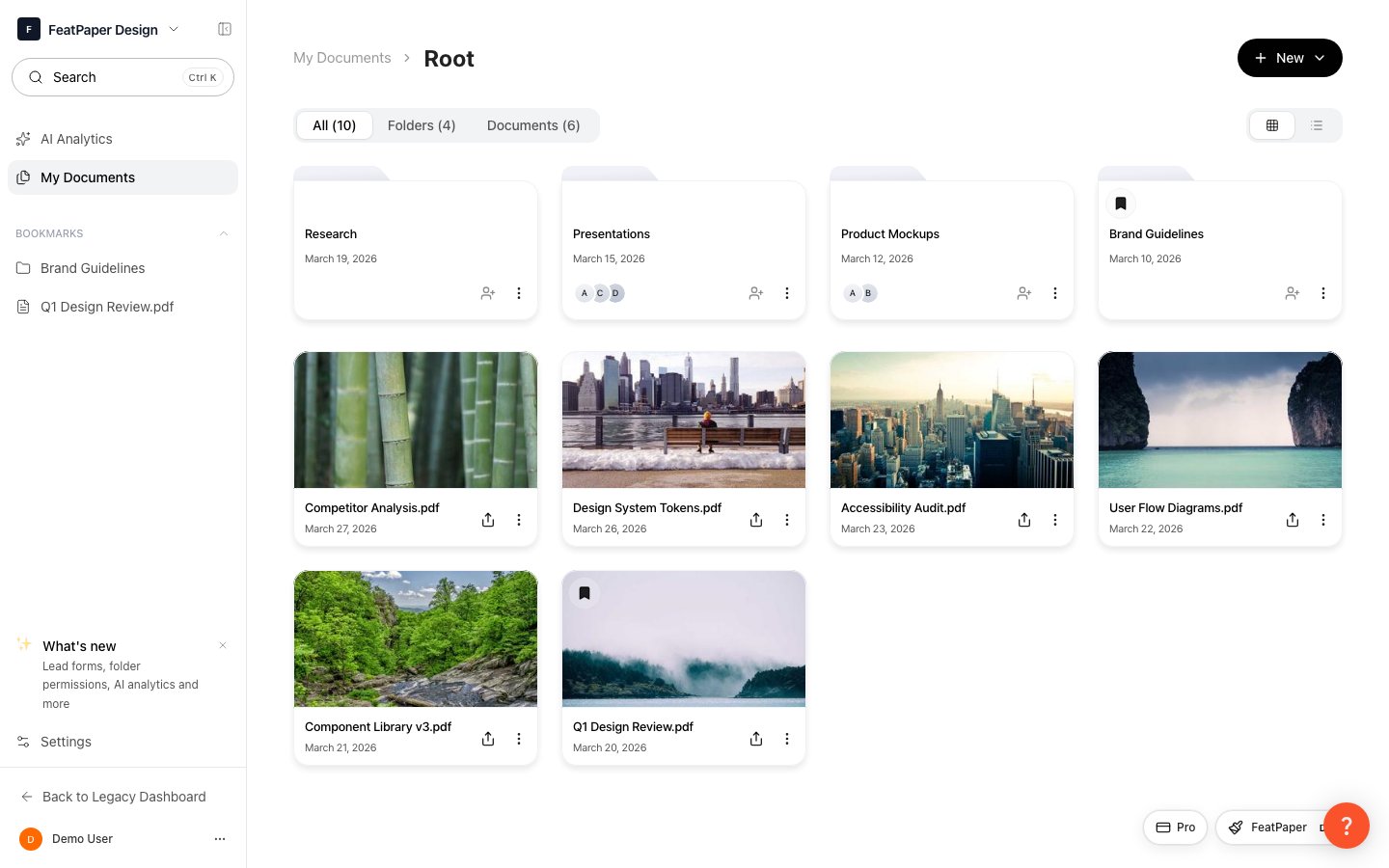
Manage folders and documents in the Documents view
Creating Folders
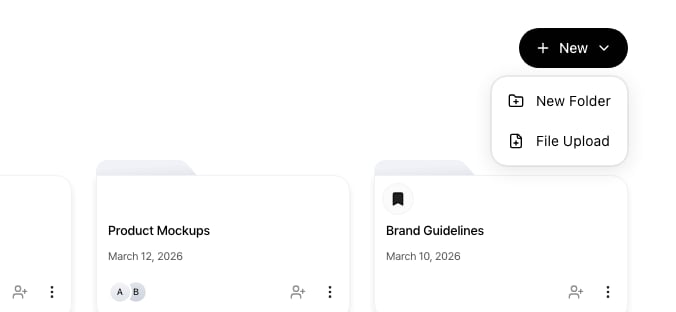
Start folder and document creation from the + Create menu
1
Go to Documents
Click Documents in the sidebar.
2
Create a New Folder
Click the + Create button at the top right, select New Folder, and enter a folder name.
3
Verify the Folder
The newly created folder will appear in the document list. Click the folder to navigate inside.
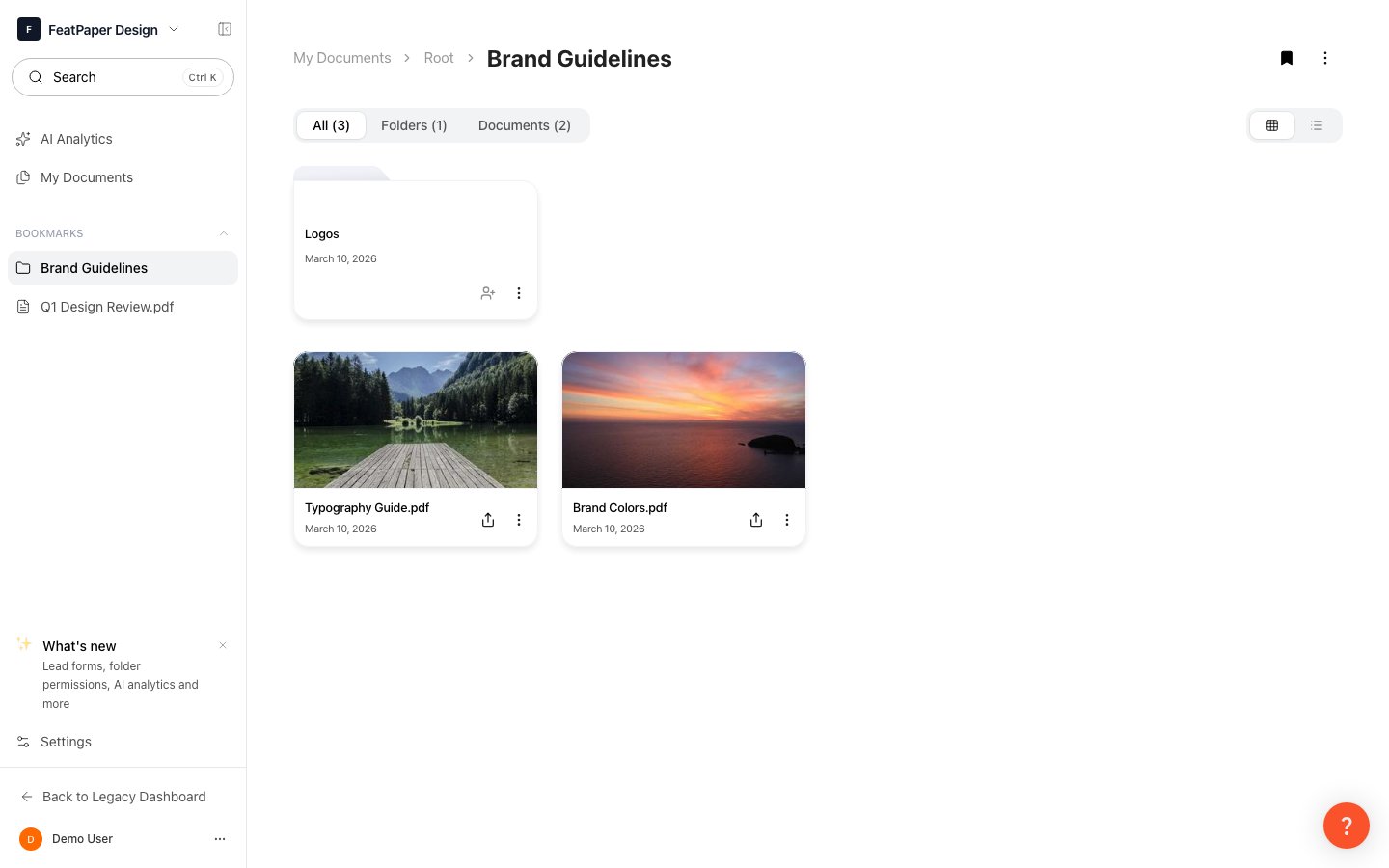
Click a folder to view the documents inside
Subfolders
Create subfolders within a folder to further categorize your documents.1
Enter the Parent Folder
Click the parent folder where you want to create a subfolder.
2
Create a Subfolder
Click the New Folder button at the top and enter a name.
Deeply nested folder structures can become difficult to navigate. We recommend keeping the hierarchy to 2-3 levels.
Moving Documents and Folders
You can move documents or folders to a different location.Moving Individual Items
Select Move from the document or folder’s more menu (…) and choose the destination folder.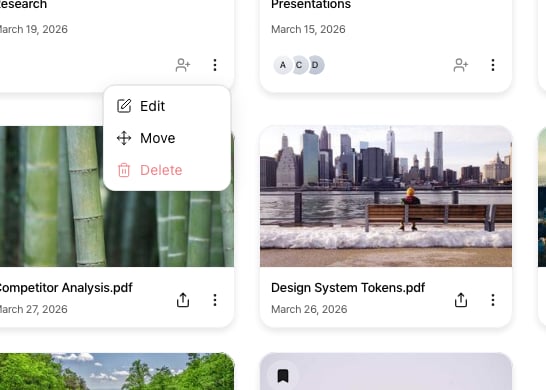
Use the more menu on a folder or document to move, invite, or bookmark it
Moving Multiple Items at Once
You can move multiple documents or folders at the same time.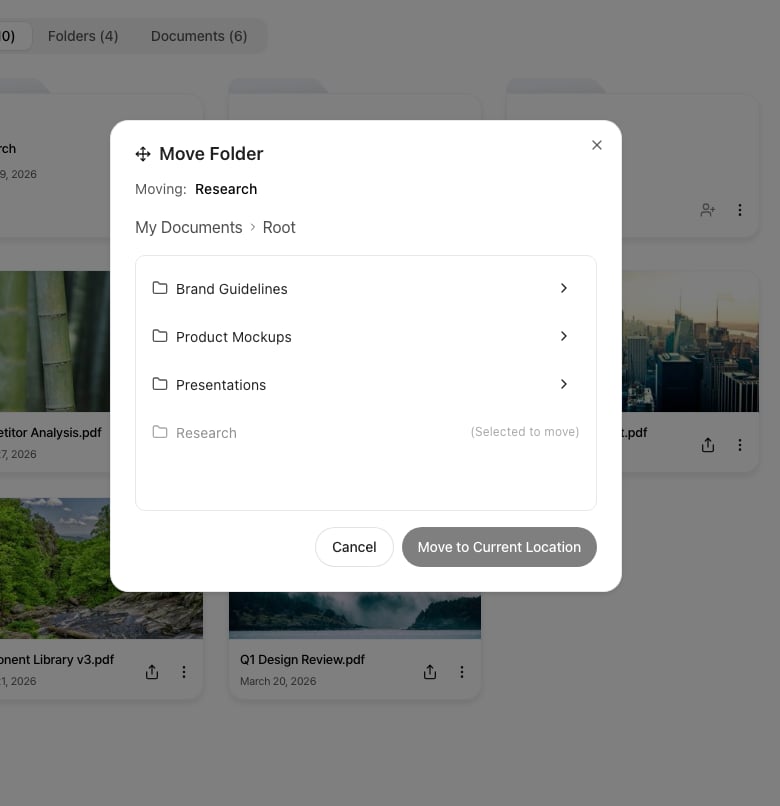
Choose the destination folder in the move dialog
1
Select Items
Hover over a document or folder and a checkbox will appear on the left. Check the items you want to move. You can select a mix of documents and folders.
2
Execute Bulk Move
When items are selected, a bulk action bar appears at the top. Click the Move button.
3
Select the Destination Folder
The move dialog opens at the parent folder of the selected items. Click My Documents in the breadcrumb at the top to go to the root level. Navigate into the target folder, then click the Move to current location button.
The folder being moved and any selected folders are shown grayed out in the destination list. Moving a folder into itself is not allowed.
Inviting Team Members to Folders
You can invite team members to a folder to grant them access. Select the Invite button on the folder row to search and invite members within your space.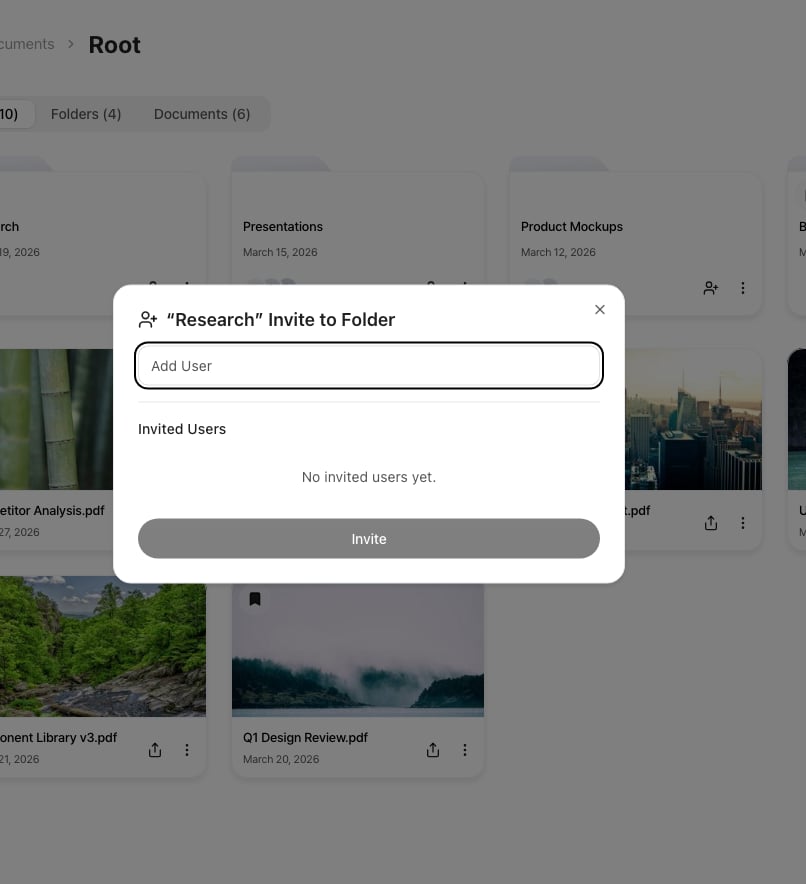
Set members and permissions in the folder invitation dialog
Folder invitations are limited to members within your space. For external users, use individual document share links.
Bookmarking Folders
Bookmark frequently used folders for quick access from the sidebar.1
Add Bookmark
Select Bookmark from the folder’s more menu.
2
Access from Sidebar
Bookmarked folders appear in the sidebar’s bookmark section. Click to navigate directly to the folder.
Deleting Folders
1
Select the Folder to Delete
Select Delete from the folder’s more menu.
2
Confirm Deletion
Approve the deletion in the confirmation dialog.