
Inviting Members
You can invite team members to your space to collaborate on documents together.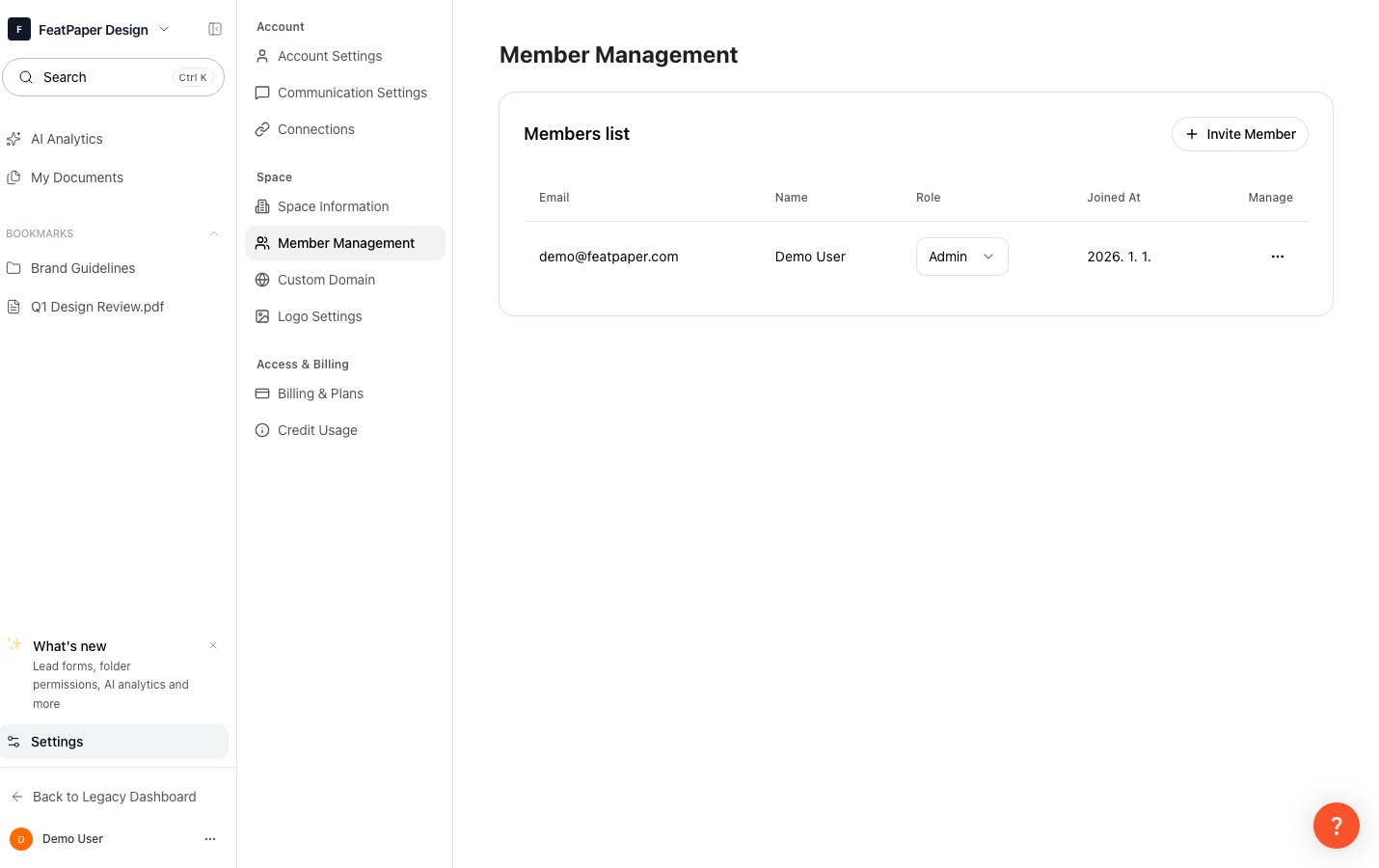
Manage team members in Settings > Members
Member invitation is available on the Business plan and above only.
1
Go to Settings
Click Settings at the bottom of the sidebar.
2
Select the Members tab
In the Settings screen, select the Members tab.
3
Invite by email
Enter the email address of the team member you want to invite, select a role, and click the Invite button.
4
Accept the invitation
The invited team member clicks the link in the email to join the space.
Role Permissions
Space members are divided into two roles: Admin and Member. The table below shows the key permission differences at the space level.Changing Roles
1
View the member list
Check the current member list under Settings > Members.
2
Change the role
Click the role dropdown for the member you want to update and select the new role.
Removing Members and Canceling Invitations
- Remove a member
- Cancel an invitation
Under Settings > Members, click the Remove button next to the member you want to remove. Removed members will no longer have access to the space.
Seat Limits by Plan
Member invitation is available on the Business plan and above only. Free and Pro plans are for single-user use.