
What Is the Motion Editor?
The Motion Editor is a full-screen editor that lets you place interactive elements such as videos, GIFs, and links on top of your PDF pages. Turn static documents into dynamic content to boost viewer engagement.Opening the Motion Editor
1
Go to the document detail page
From the dashboard, click the document you want to add motions to and navigate to the document detail (analytics) page.
2
Click Edit document
Click the Edit document button to open the full-screen Motion Editor.
Editor Layout
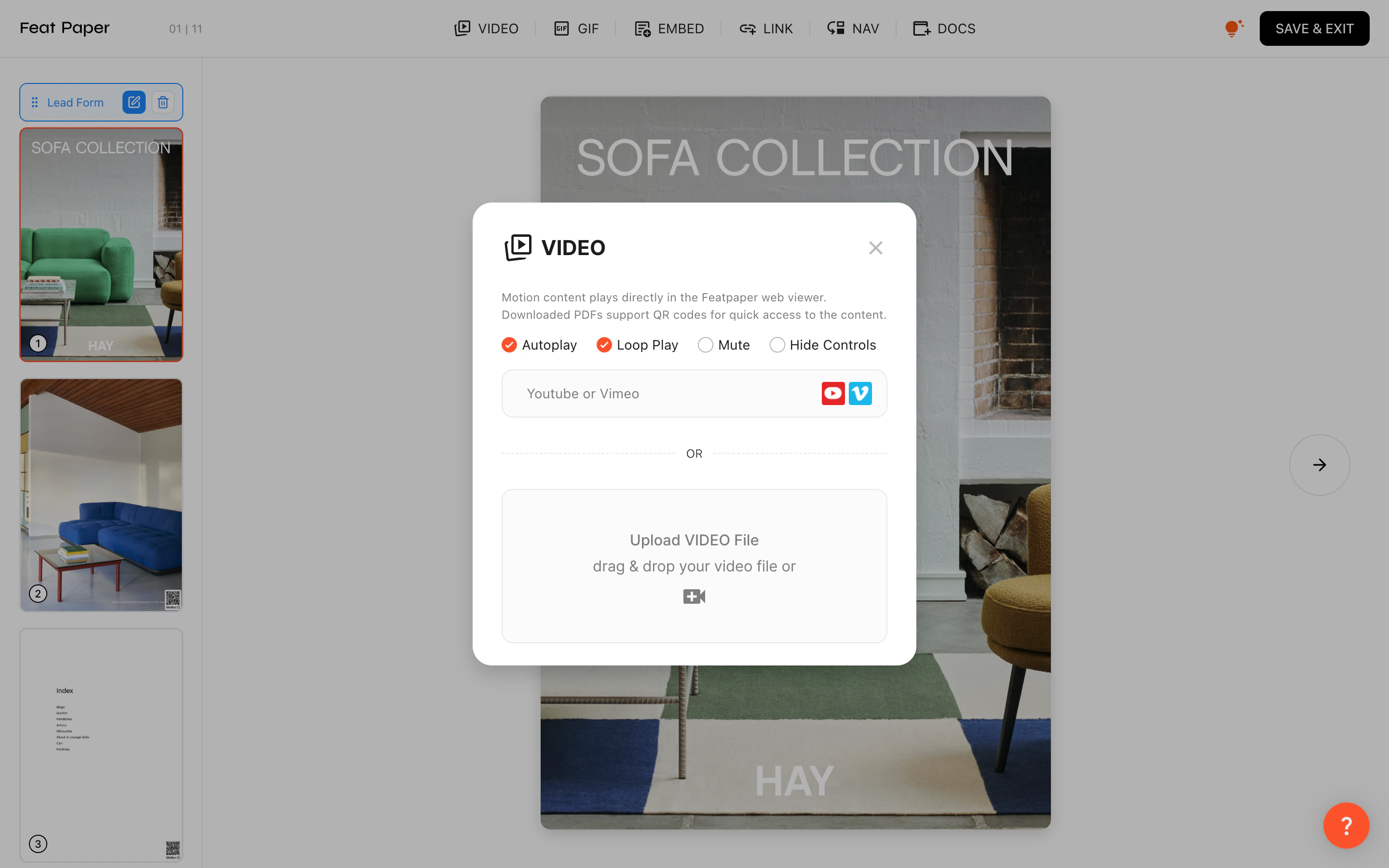
Add interactive elements in the Motion Editor
- Header: FeatPaper logo, motion type tabs (VIDEO, GIF, EMBED, LINK, NAV, DOCS), help icon, and the SAVE & EXIT button
- Left sidebar: Page thumbnail list and a draggable lead form marker
- Canvas: The main area where you place and edit motion elements on PDF pages
Motion Types
Adding a Motion
1
Select a motion type
Click the desired motion type tab in the header.
2
Provide content
Upload a file, or enter a URL/embed code. For LINK/NAV types, specify the target URL or page number.
3
Position and resize
Drag the motion element on the canvas to position it, and drag the corner handles to resize. You can lock the aspect ratio.
Video Settings
When using the VIDEO type, you can configure the following options:Link and Navigation Settings
LINK and NAV types create clickable areas on the page.- Click area: Drag to set the position and size.
- Corner rounding: Adjust the corner radius of the area.
- Target: For LINK, specify the destination URL. For NAV, specify the target page number.