Key changes to know when transitioning from the old dashboard to the new dashboard.
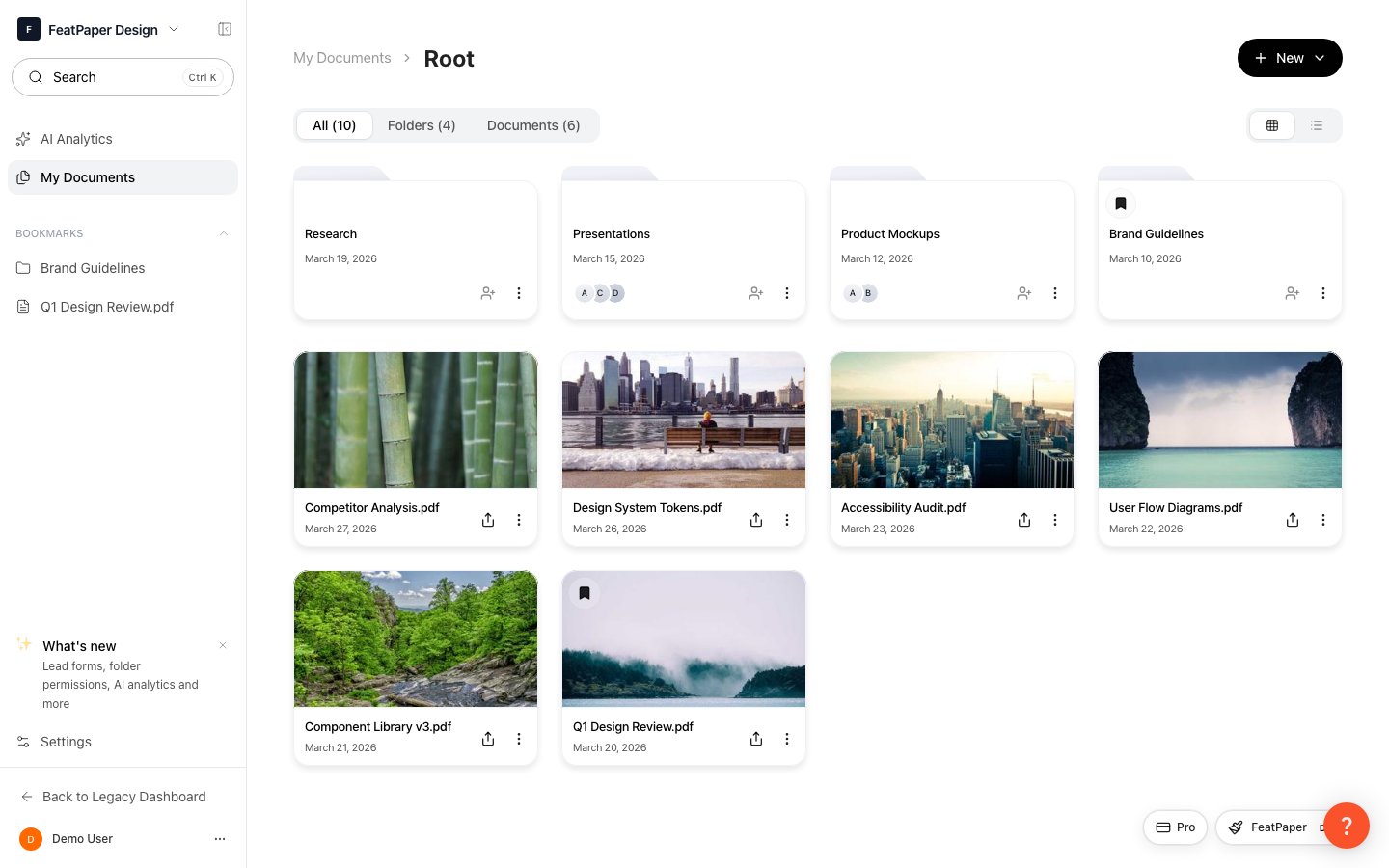
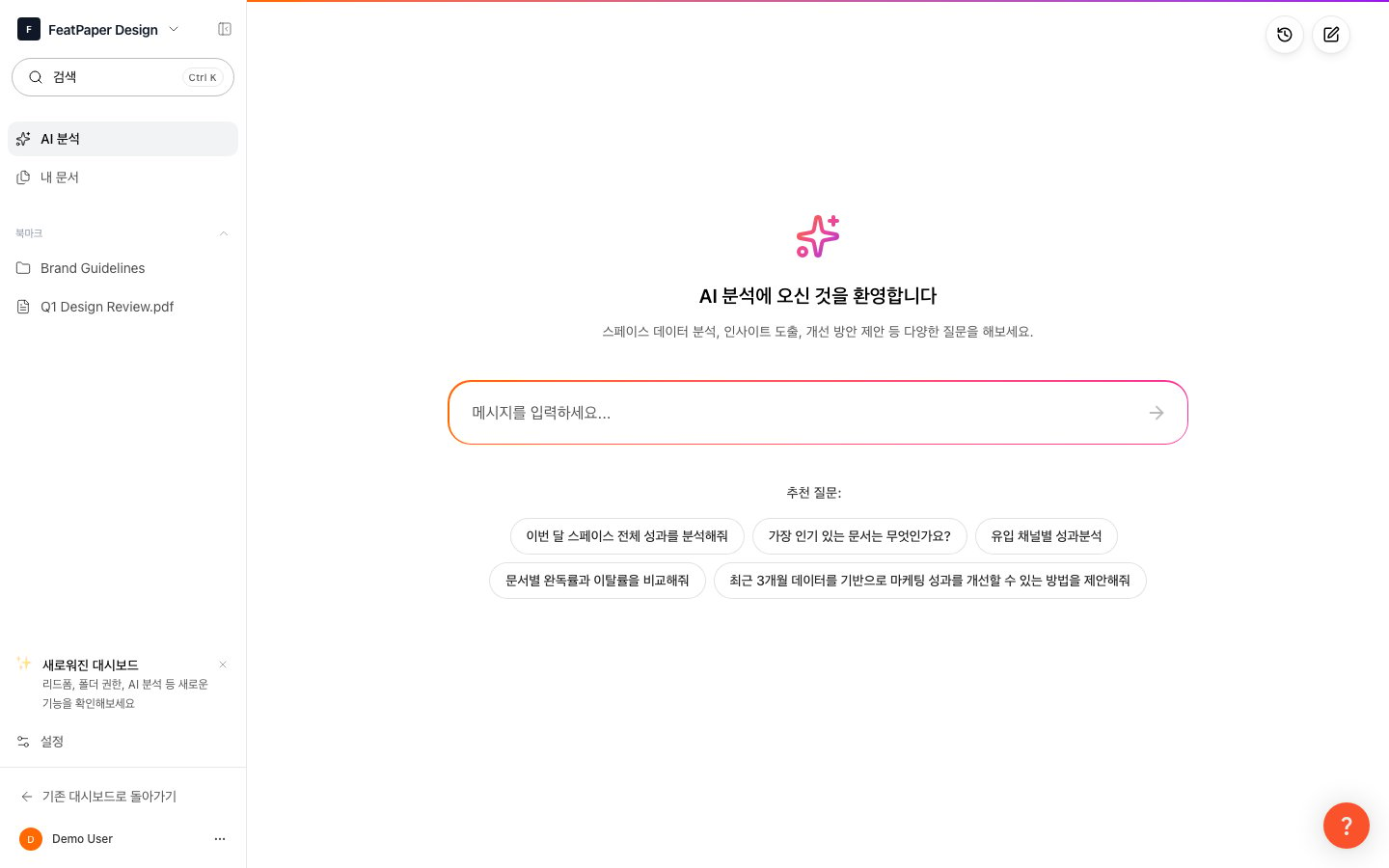
FeatPaper has transitioned from a user-based dashboard to a space-based dashboard. Team collaboration, document management, and customer data collection have been completely redesigned, and new AI Analytics capabilities have been added.
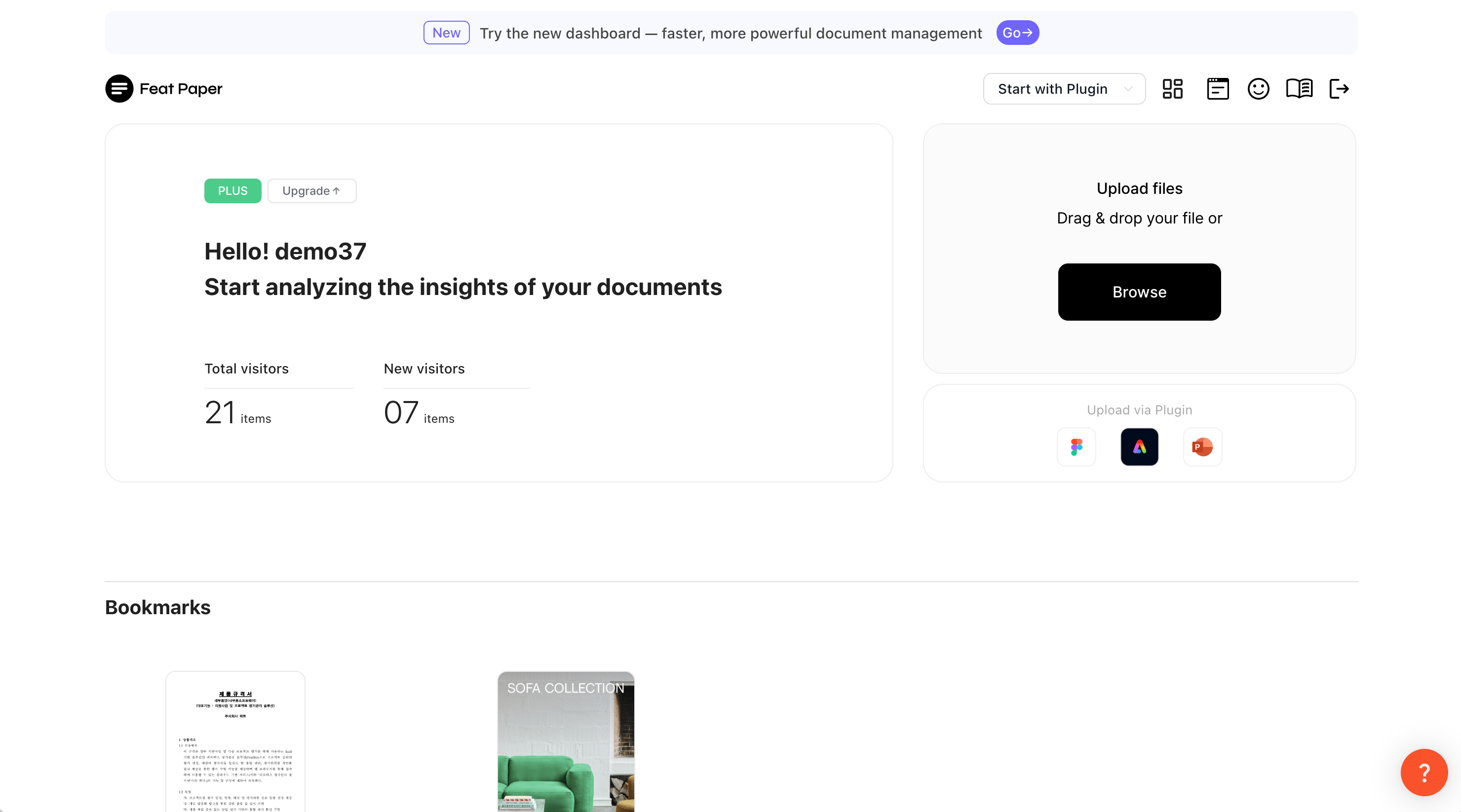
Click the dashboard switch icon (the first icon) in the top header of the old dashboard. If you have not switched yet, a red notification dot will be displayed.
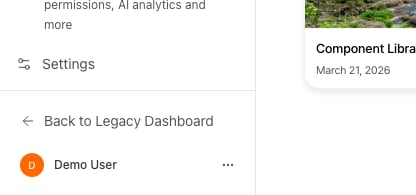
Click the Back to legacy dashboard button at the bottom of the new dashboard’s sidebar.
Old dashboard button at the bottom of the new dashboard sidebar
Once you switch, the selected dashboard becomes your default starting from your next login. Direct URL access will also automatically redirect based on your setting.
The way lead forms are configured for collecting customer information has changed significantly.
Old Method
New Method
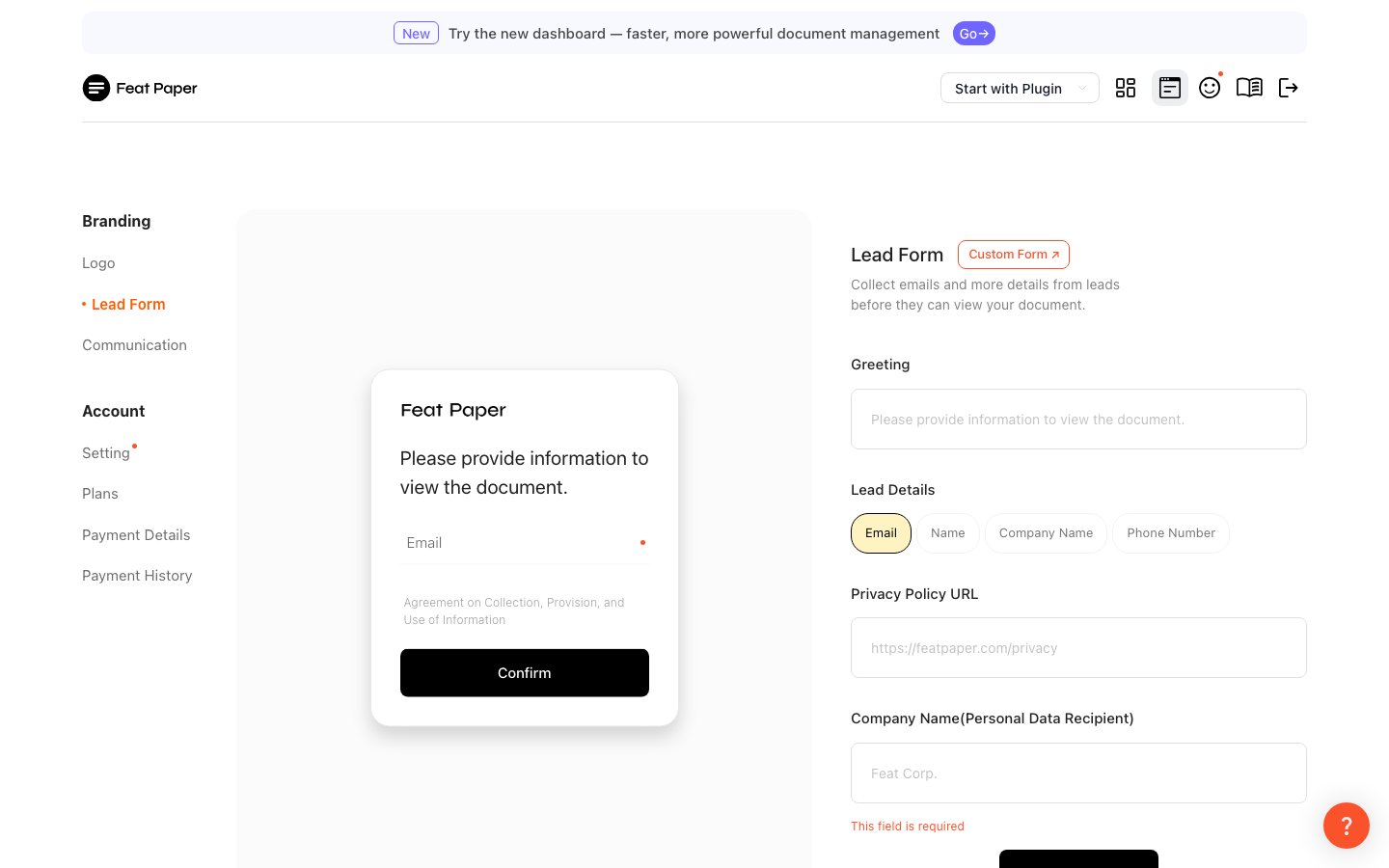
Previously, setting a lead form at the user level applied it uniformly to all documents, and the available field options were limited.
Old lead form settings screen
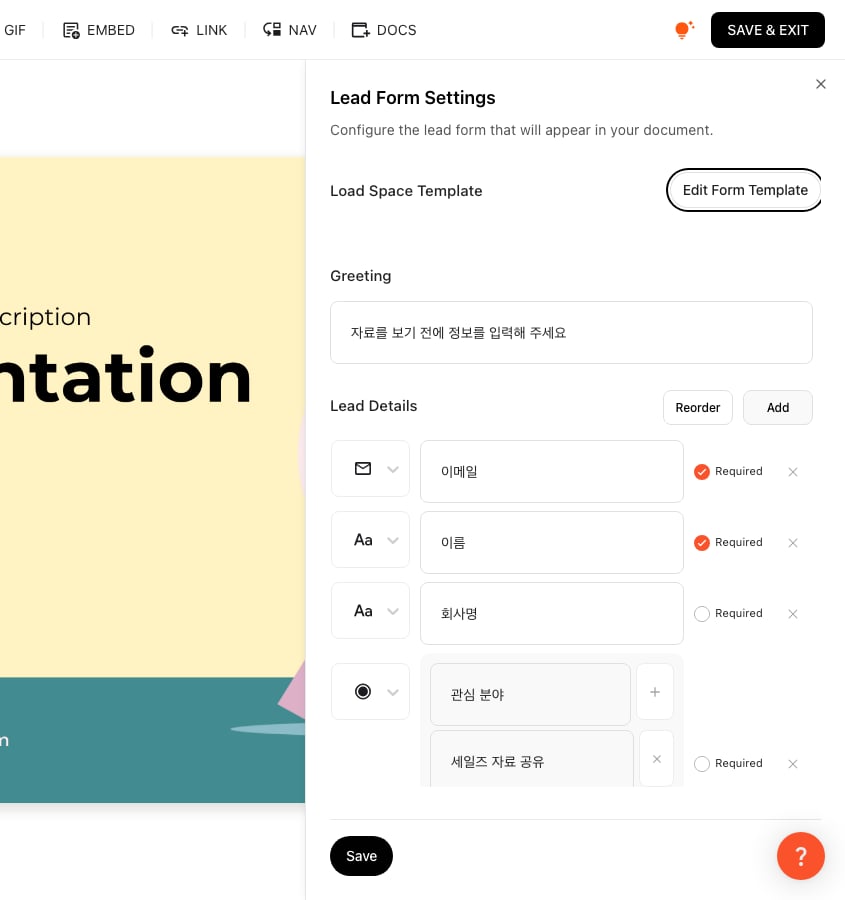
You can now configure a lead form individually for each document from the Motion Editor. Frequently used configurations can be saved as space templates and reused.
Lead form settings in the new dashboard Motion Editor
Key changes:
Per-document lead form: Configure individually from each document’s Motion Editor
Variety of field types: Choose from Email, Text, Checkbox, Radio, and more
Centrally managed templates: Load and reuse templates saved in the space
Form position: Drag to place the form between any pages
CTA (Call-to-Action) button settings are now configured per space member.Old method: Each user individually configured their own CTA channels such as email, Slack, or KakaoTalk.New method: Configure per space member from the communication settings in Settings. The same CTA is applied to all documents shared within that space.
Custom CTA settings that apply to a single document are also supported in document settings. If you want to use a different CTA per document, you can configure it separately in the document settings.
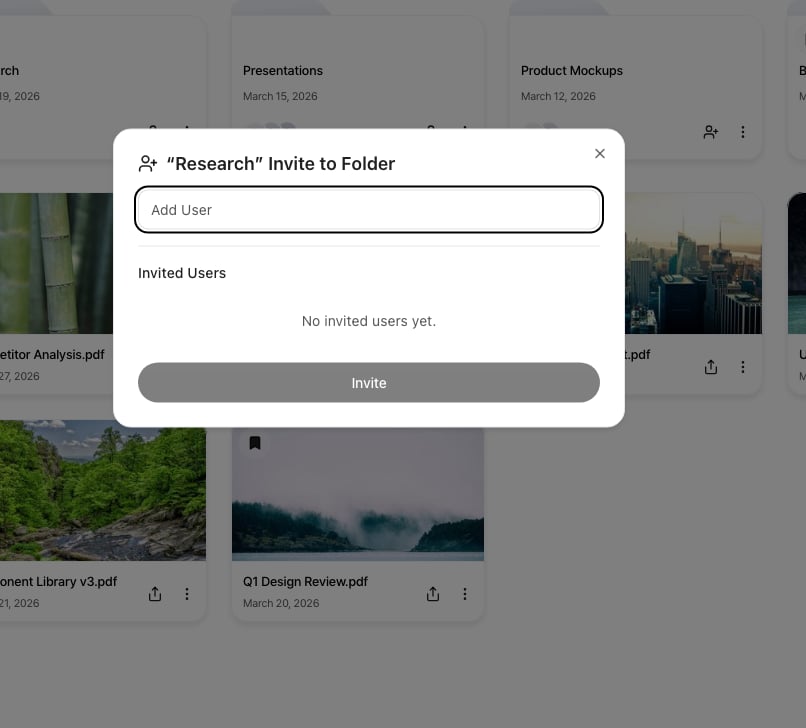
In the new dashboard, you can manage access permissions in detail at the folder level.
Folder access permission settings screen
Permission
Description
Accessible Data
Editor
Users with edit access to the folder
Tracking data from all sharers of every document in the folder
Viewer
Users with view-only access to the folder
Only tracking data from documents they shared themselves
Granting folder edit access exposes the sharing data of all documents within that folder. Be careful with permission settings when sensitive customer data is involved.
Documents that exist only in the old dashboard (1.0) can be imported into the new dashboard (2.0) workspace.
1
Click the Import Button
Click the Import My Documents button at the bottom of the new dashboard sidebar.
2
Confirm the Dialog
Click Import in the confirmation dialog.
3
Import in Progress
A progress bar will appear as the documents are moved. Please wait a moment for the process to complete.
4
Complete
Once finished, the button disappears automatically and the imported documents appear in Documents.
After the document import is complete, access to the old dashboard (1.0) will be blocked in the future. If you have not imported your documents yet, please do so now.
This feature is only visible to the space owner (Admin).